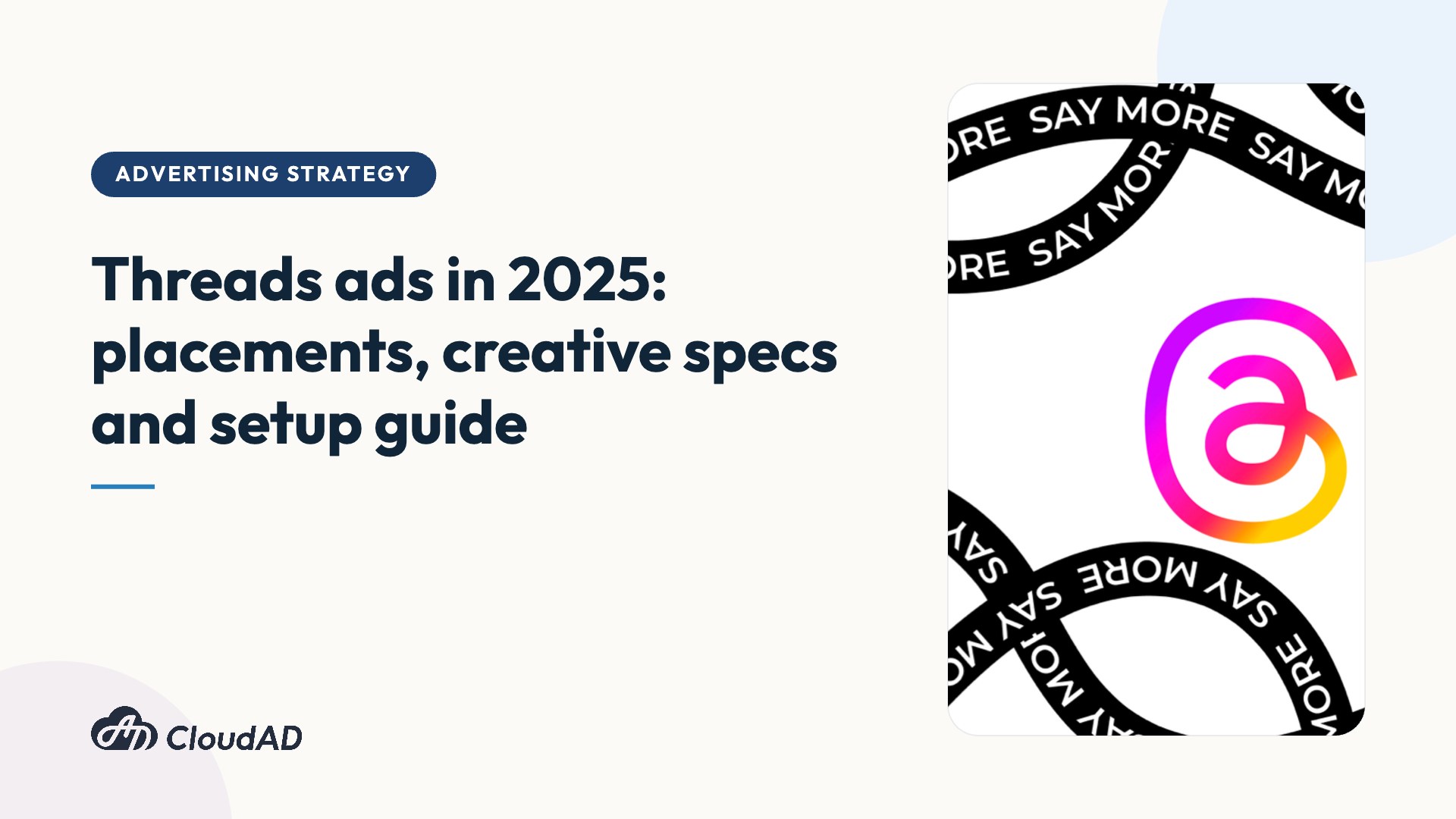
Meta has officially announced that Threads ads will be fully available from 19 May 2025.
This article explains Threads ad formats, the creative assets you need and how to set up a campaign step by step. It ends with a Q&A round-up so you can get started with Threads ads quickly.
How Threads ads appear
Currently, only image ads in the feed are available.
The difference from organic posts is that a “Sponsored” label appears next to the account name.
Text appears in the same way as in native Threads feed posts.
Images are shown mainly in landscape or square format. If you use a portrait (9:16) image, it will be cropped and centred to a square (1:1).
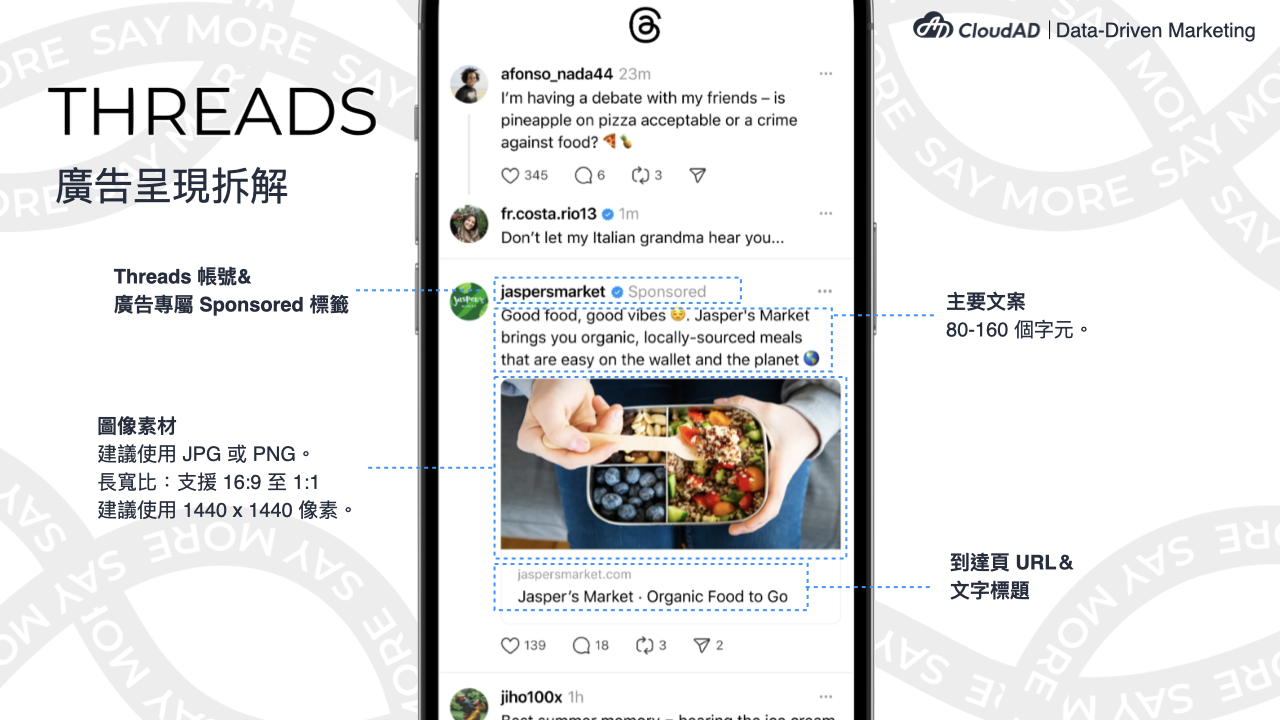
Meta has also said it will open up other formats over time, so watch this space.
What you need before running Threads ads
Besides setting aside an ad budget, you need to know what the ads can achieve for you, and you need a brand Threads account and image and copy assets. Most importantly, you need to know how to create the ad in Meta Ads Manager. All of this is covered below.
Objectives available for Threads ads
- Awareness: increase awareness of your business and improve reach.
- Traffic: increase traffic to a destination (such as a website) and optimise for link clicks.
- Sales: find people likely to buy your products or services and optimise for conversions.
Image and copy specs for Threads ads
The following guidelines apply to image ads delivered to the Threads feed:
- File type: JPG or PNG recommended.
- Aspect ratio: 16:9 to 9:16 supported. Images taller than 1:1 will be cropped and centred to 1:1. Images from 16:9 to 1:1 will not be cropped or modified.
- Resolution: 1440 x 1440 pixels recommended. There is no minimum or maximum resolution.
- Primary text: 80–160 characters.
- Headline: 40 characters.
- Call to action: although the call-to-action button is not shown on image ads in the Threads feed, you still need to choose a call to action for image ads in other placements (such as the Instagram feed). Note: hashtags are not supported.
How to create and set up a Threads ad
Two things to check before you start:
️ If you do not have a Threads profile, you can create one at the ad level in Ads Manager.
️ Threads ads will only be enabled for all ad accounts after 19 May 2025. If you cannot set them up before then, please wait.
- Go to Ads Manager and click + Create.
- Choose Awareness, Traffic or Sales as your ad objective, then click Continue.
- If you chose Sales, turn off the Advantage+ catalogue ads toggle at the campaign level. If you chose Awareness or Traffic, skip this step.
- Complete the steps of the ad creation flow until you reach the ad set level.
- Choose the conversion location and performance goal based on the ad objective you chose in step 2:
- Awareness: in the Awareness section, under Performance goal, make sure Maximise reach of ads is selected.
- Traffic: choose Website as the conversion location. Under Performance goal, choose Maximise number of link clicks.
- Sales: choose Website as the conversion location. Under Performance goal, choose Maximise number of conversions.
- Make sure Advantage+ creative is turned off.
- Complete the Budget and schedule and Audience controls sections.
- In the Placements section:
8-1. Advantage+ placements is selected by default, which means the Threads feed is included in your placements by default.
8-2. If you want to use manual placements, hover over Advantage+ placements, click Edit and choose Manual placements. You will see that Threads is selected by default.
Note: the Threads feed is not supported as a standalone placement, so you must select both the Threads feed and the Instagram feed. - In the Identity section, if you do not yet have a Threads profile, click Create profile to create a Threads profile using your Instagram account.
- In the Ad setup section, make sure you choose Create ad in the drop-down menu and choose Single image or video as the ad format. (Note: you can currently only create image ads. Video ads are not yet supported.
If you chose Traffic or Sales as your objective, choose Manual upload when setting up your media.) - In the Destination section, choose Website and enter the website URL.
- Complete the Ad creative section.
- Make sure Languages is turned off.
- Complete the Tracking section as needed.
- When everything is ready, click Publish.
Threads ads: common questions
Q: Why can’t I set up Threads ads in my ad account? How do I fix it?
A: According to Meta, Threads ads are expected to be fully available from 19 May 2025. If your ads still cannot appear on Threads after that date, check whether you are using any of the following. They will prevent your ads from appearing on Threads:
|
Ad options, types, settings, formats and destinations |
Incompatible items |
|
Ad options |
|
|
Ad types |
|
|
Ad settings |
|
|
Ad formats |
|
|
Ad destinations |
Note: only Website is supported. |
Q: Is there any way to get traffic from Threads without paying?
A: See our article on the Threads algorithm to learn how to get more traffic through day-to-day community management.