Introduction
Does this sound familiar?
Every morning, the first thing you do is check website traffic in GA4, then switch to Meta Ads Manager to look at ad spend, click-through rate and other metrics. After that, you still have to piece the two sets of data together in your head before you get a full picture of ad performance.
The good news: GA4 now supports automatic import of Meta Ads data.
This guide takes you through the setup step by step, so you can see all of Meta Ads’ core data in GA4 in one place and stop working with data silos.
Read to the end: there is one pitfall that people most often overlook but that really matters.
Setting up the Meta Ads import
GA4 now supports importing cost data from multiple platforms, including Google Sheets, Amazon services (Redshift, S3), BigQuery, various databases (such as MySQL and PostgreSQL), Snap, Pinterest, and most recently Meta and TikTok.
This article uses Meta ad spend as an example. The steps are as follows:
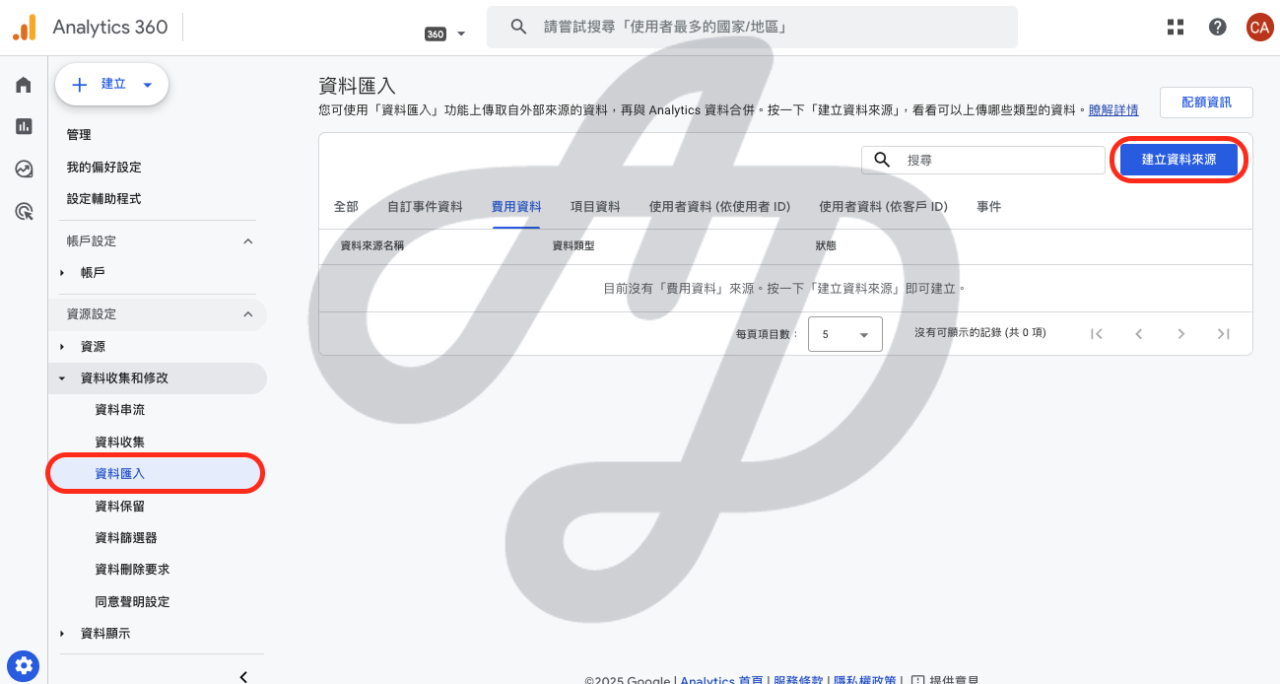
Step 1. Click Admin > Data import > Create data source.
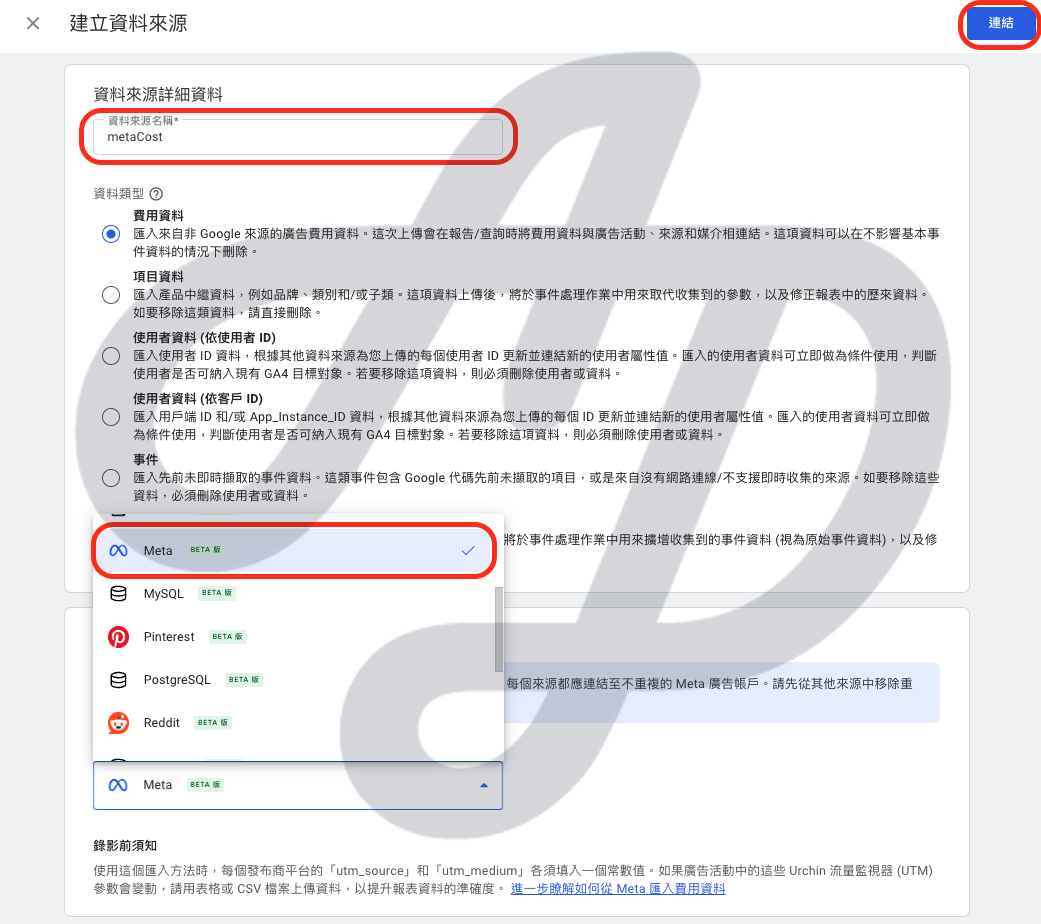
Step 2. Enter a data source name > choose “Meta” as the data source > click “Connect”.
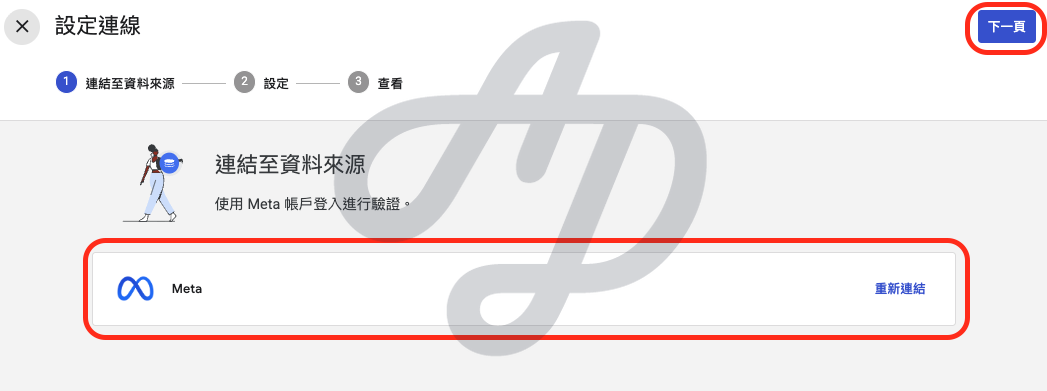
Step 3. Connect your Meta account > click “Next”.
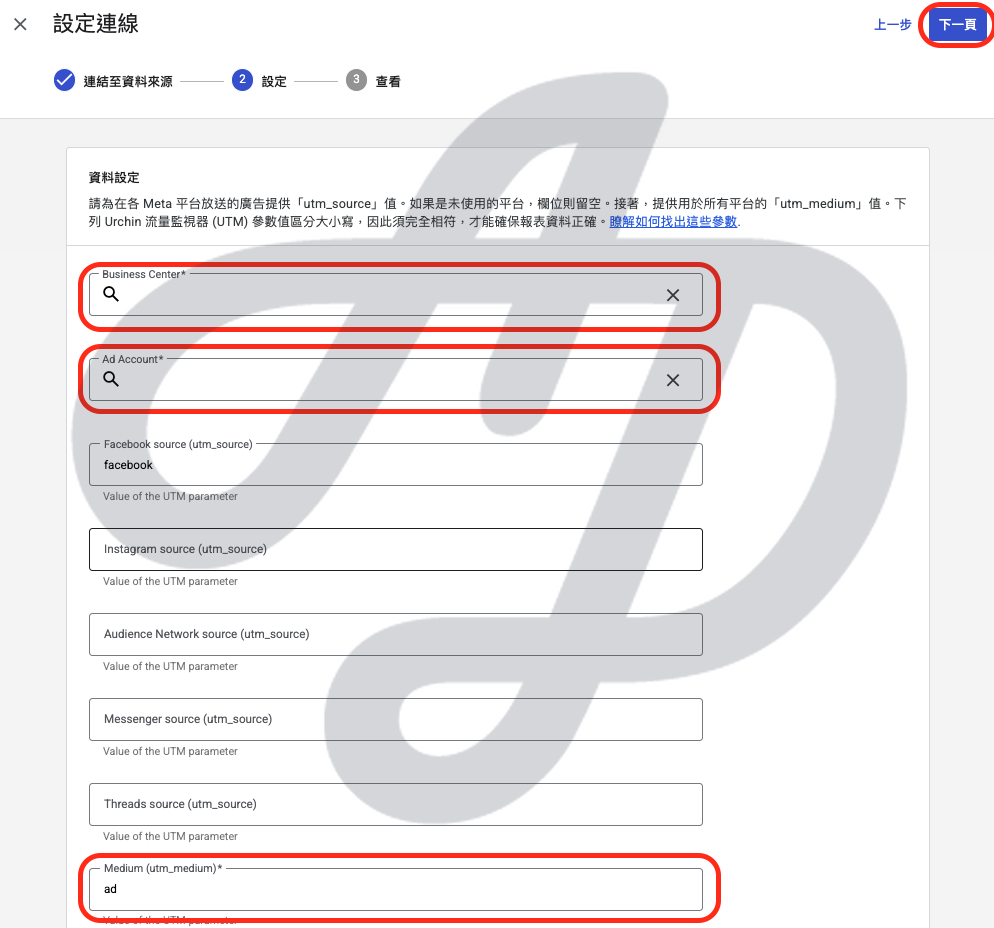
Step 4. Business Center, Ad Account and Medium are required. Click “Next”.
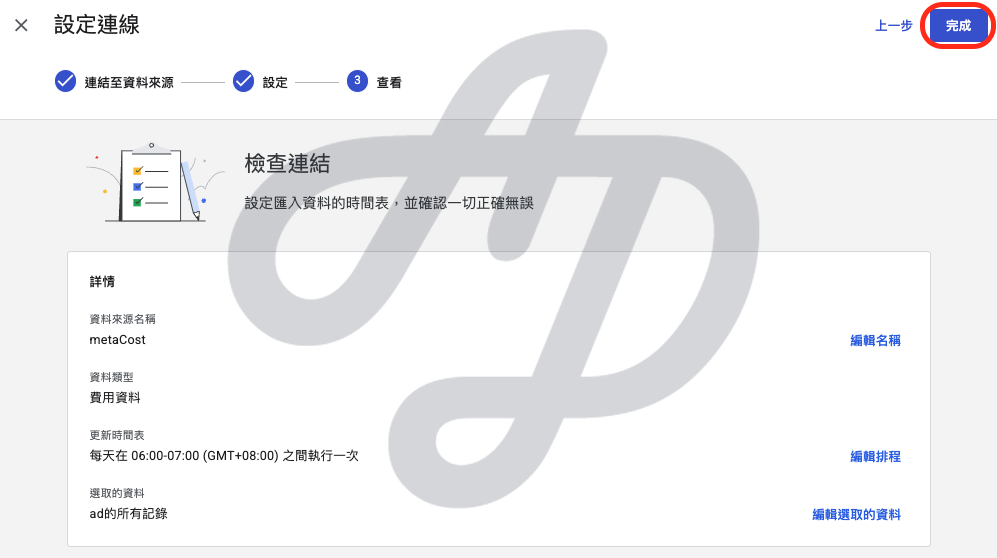
Step 5. Finally, check the data source name, refresh schedule and selected data > click “Done”.
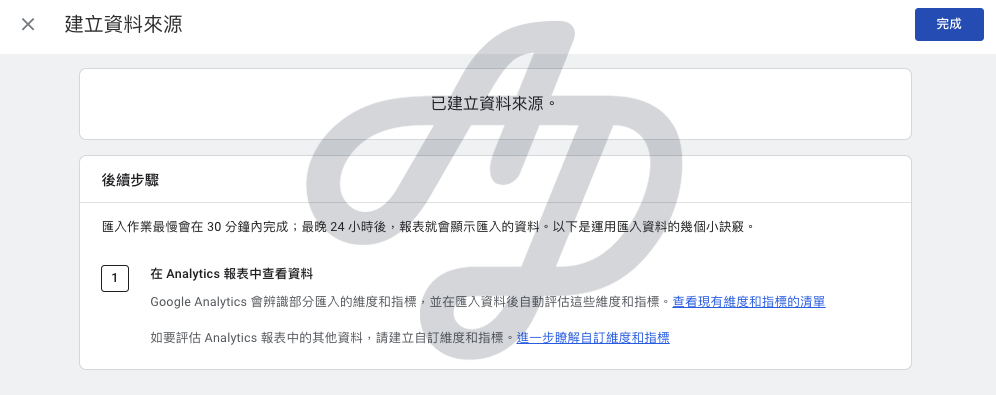
Step 6. It can take up to 24 hours for the imported data to appear in reports.
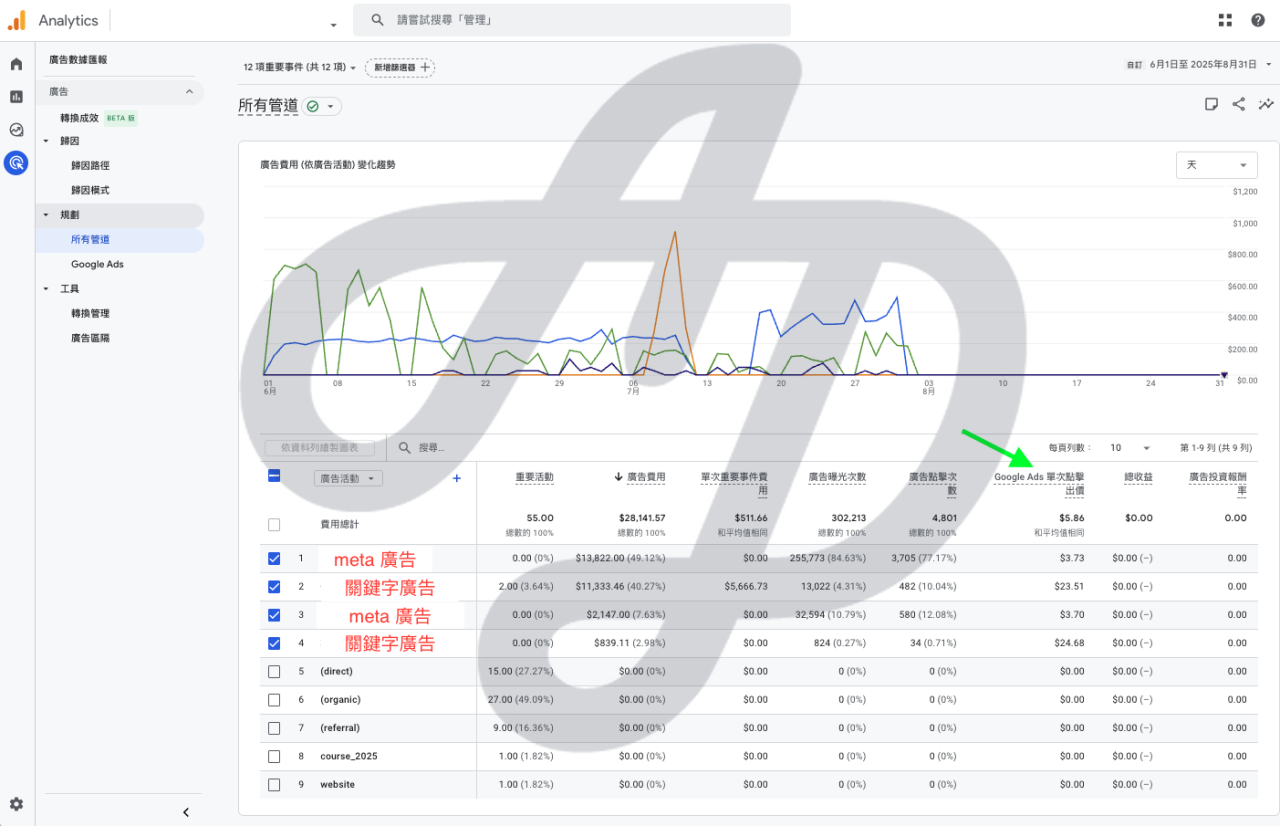
Once the data has been processed, click Advertising > All channels to see ad spend for the corresponding campaigns.
There is a small bug where the green arrow points: the metric is named “Google Ads cost per click”, but it is actually the cost per click (CPC) of the ads.
Finally, to avoid the pitfall of finding your data suddenly inflated: this automatic import backfills data from the previous 24 months. If you have previously imported cost data manually, you need to delete the old data, otherwise costs will be counted twice.
In the digital age, GA4 is not only a tool for large enterprises. To make the most of your data, get in touch.