Introduction
In a data-driven era, being able to get insights from analytics data quickly and intuitively is essential. The Google Analytics 4 Model Context Protocol (MCP) server was built for exactly this. It lets AI tools (such as Claude CLI, Antigravity or Gemini CLI) talk to GA4 data directly in natural language, turning tedious report queries into efficient question-and-answer exchanges.
This guide walks you through setting up Google’s official GA4 MCP server from scratch, so your AI assistant becomes a capable helper for data analysis.
Important security and privacy warnings
Before you start, be aware that not all data is suitable for analysis with AI tools.
- Information security: when you use third-party AI clients, your queries and some data may be sent to the AI provider’s servers. Make sure what you do complies with your company’s internal security policies.
-
Customer privacy: never give AI personally identifiable information (PII) (such as names, national ID numbers, full addresses or phone numbers) or highly sensitive customer data. Make sure your GA4 property has been appropriately de-identified.
- Compliance: follow the relevant laws and regulations (such as GDPR, CCPA or Taiwan’s Personal Data Protection Act) to make sure your use of data is lawful and compliant.
Prerequisites
Before you start, make sure you have the following:
- A GA4 property: you’ll need its ID.
- A Google Cloud Platform (GCP) account: used to enable the necessary APIs and manage credentials.
- A Python environment: Python 3.10 or later is recommended.
- pipx: used to install and run Python applications. If you haven’t installed it yet, run pip install pipx.
- gcloud CLI: the Google Cloud SDK command-line tool, used to manage GCP resources and credentials. Make sure it’s installed and configured.
Step 1: Google Cloud Platform (GCP) setup
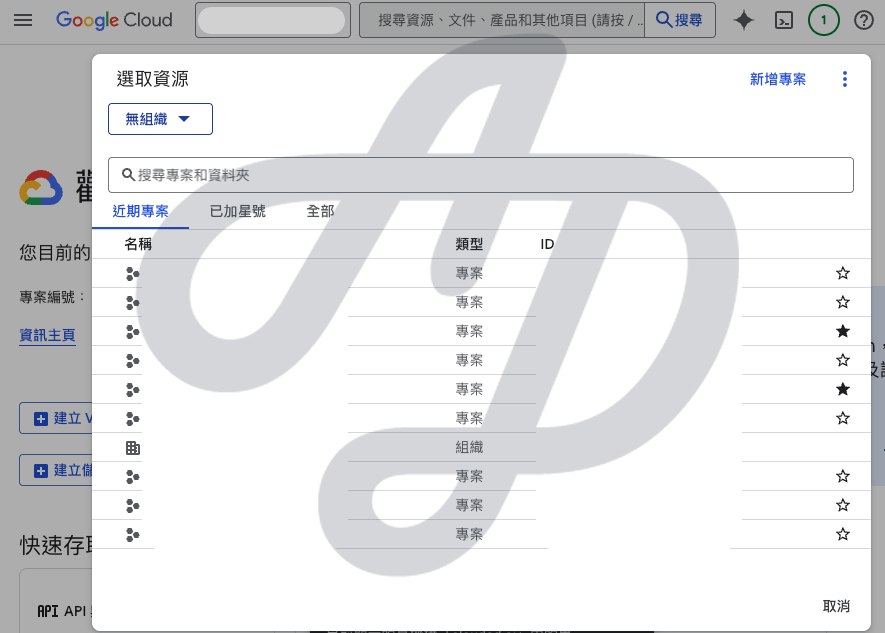
1.1 Create or select a GCP project
Log in to the Google Cloud Console and create a new project, or select an existing one.
1.2 Enable the necessary APIs
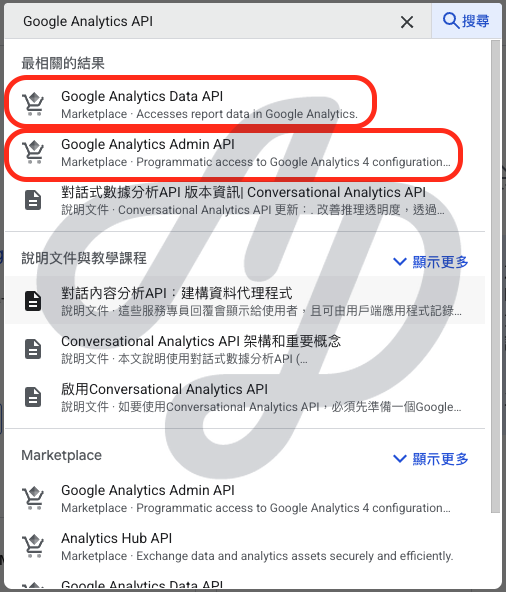
In your GCP project, go to “APIs & Services” > “Library”, then search for and enable these two APIs:
- Google Analytics Data API
- Google Analytics Admin API
1.3 Configure Application Default Credentials (ADC)
The official GA4 MCP server recommends using ADC for authentication. This keeps credentials secure and easy to use.
- Create an OAuth client:
- Go to “APIs & Services” > “Credentials”.
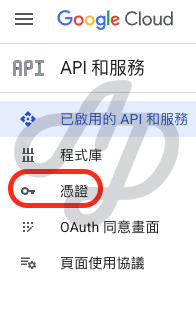
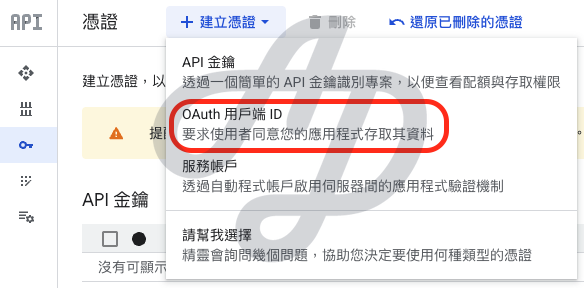
- Click “Create credentials” > “OAuth client ID”.
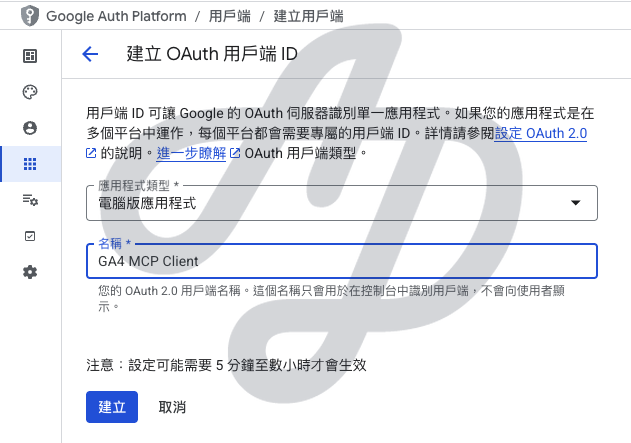
- Choose “Desktop app”, enter a name (for example GA4 MCP Client), then click “Create”.
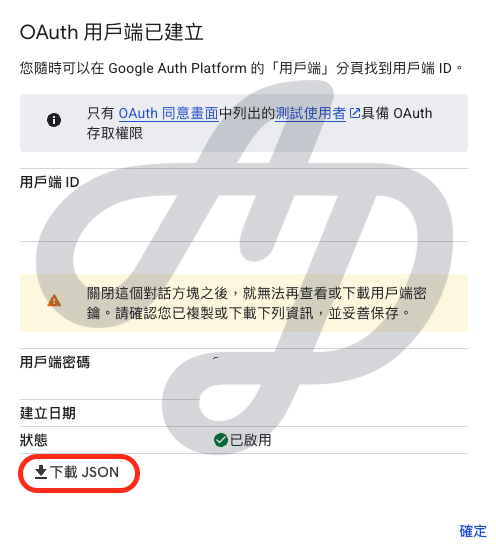
- Download the generated JSON file:
for example, name itclient_secret.json, and note its file path. - Log in and set up ADC with the gcloud CLI:
open your Terminal or Command Prompt and run the following command. ReplaceYOUR_CLIENT_JSON_FILEwith the absolute path to the OAuth client JSON file you just downloaded:
Terminal / Bash
gcloud auth application-default login \
--scopes https://www.googleapis.com/auth/analytics.readonly,https://www.googleapis.com/auth/cloud-platform \
--client-id-file=YOUR_CLIENT_JSON_FILE
Step 2: grant access to the GA4 property
Make sure the Google account used for ADC (or the service account, if you chose service account impersonation) has read access to your GA4 property.
-
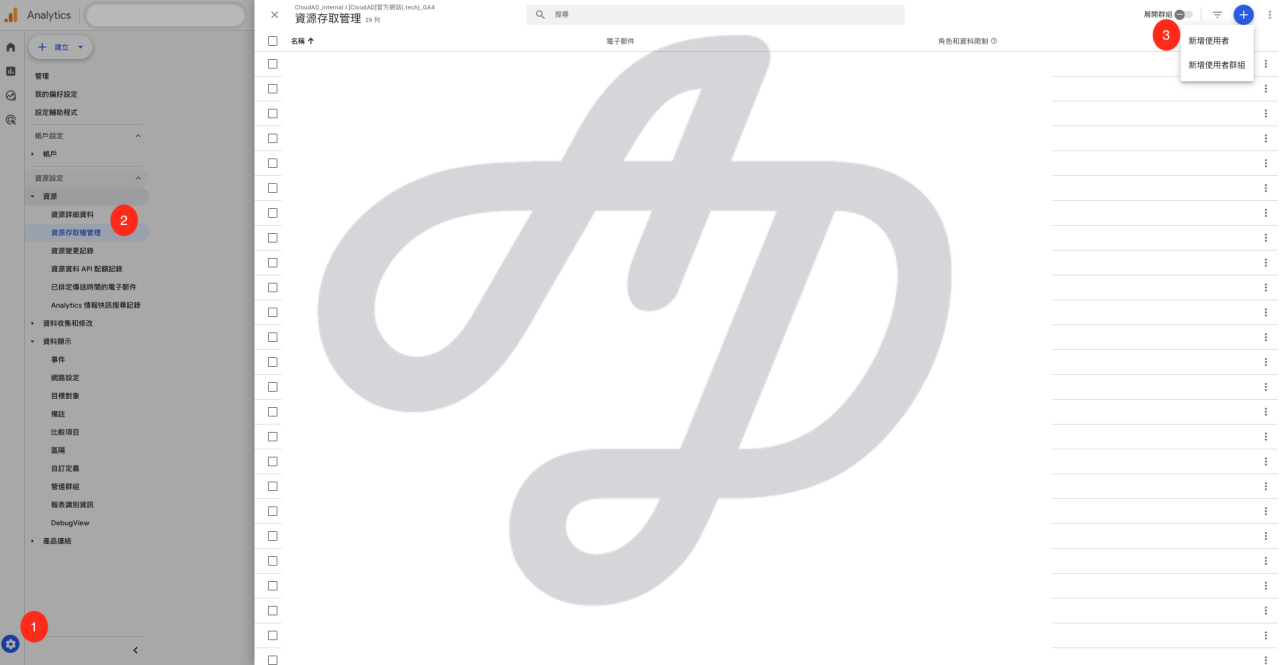
Go to Admin > Property settings > Property Access Management > click “+” in the top right > “Add users”.
- Enter the email address of the Google account used for gcloud auth application-default login.
- Select the Viewer role > “Add”.
Step 3: install and run the official GA4 MCP server
3.1 Install analytics-mcp
Use pipx to install the official MCP server. pipx installs the application in an isolated environment to avoid dependency conflicts.
pipx install analytics-mcp3.2 Run the MCP server (through AI client configuration)
Unlike community versions, the official MCP server usually doesn’t run as a separate long-running process. It is called by the AI client (such as Gemini CLI or Code Assist) when needed, so you don’t need to start a server process manually.
Step 4: connect an AI client (using Gemini CLI as an example)
The final step is to configure your AI client so it can call and use the GA4 MCP server.
1. Install Gemini CLI.
2. Edit the Gemini settings file:
config.json
{
"mcpServers": {
"analytics-mcp": {
"command": "pipx",
"args": [
"run",
"analytics-mcp"
],
"env": {
"GOOGLE_APPLICATION_CREDENTIALS": "PATH_TO_CREDENTIALS_JSON",
"GOOGLE_PROJECT_ID": "YOUR_PROJECT_ID"
}
}
}
}- Create or edit the file at ~/.gemini/settings.json.
- Paste the JSON configuration into the settings file. Replace PATH_TO_CREDENTIALS_JSON with the path of the ADC credentials created in step 1.3 (by default ~/.config/gcloud/application_default_credentials.json on macOS and Linux, or %APPDATA%\gcloud\application_default_credentials.json on Windows), and replace YOUR_PROJECT_ID with your GCP project ID.
Step 5: test and use it
Restart Gemini CLI or Gemini Code Assist. You should see that the analytics-mcp server has connected successfully. You can now ask the AI questions in natural language and get insights from your GA4 data:
| Example query (Chinese) | Example query (English) |
|---|---|
|
「上個月前五大流量來源是什麼?」 |
“What were my top 5 traffic sources last month?” |
|
「昨天我有多少使用者?」 |
“How many users did I have yesterday?” |
|
「比較行動裝置與桌機的流量。」 |
“Compare mobile vs desktop traffic.” |
|
「我的 GA4 資源中有哪些自訂維度與指標?」 |
“what are the custom dimensions and custom metrics in my property?” |
The AI tool will:
1. Receive your natural language query.
2. Call analytics-mcp through the configured MCP server.
3. analytics-mcp uses your ADC credentials to send requests to the GA4 Data API and Admin API.
4. Receive the raw data returned by GA4.
5. Analyse the data and reply with an easy-to-understand text summary.
Conclusion
With this guide, you should now have set up the official Google Analytics 4 MCP server and connected it to your AI client. This not only simplifies data analysis but opens a new chapter of AI-driven data insight. You can now talk to your GA4 data with ease, get the business intelligence you need quickly, and spend more time on strategy.
In the digital age, GA4 isn’t just a tool for large enterprises. Want to be part of this wave of data? Get in touch.