Just starting out with website interaction analysis and not sure where to begin? Beyond page views, what other user interactions can you analyse? GA4’s Enhanced measurement events give brands a clear direction for analysing on-site behaviour, covering scrolls, outbound clicks, site search, video engagement, file downloads and form interactions.
1. How to turn on GA4 Enhanced measurement
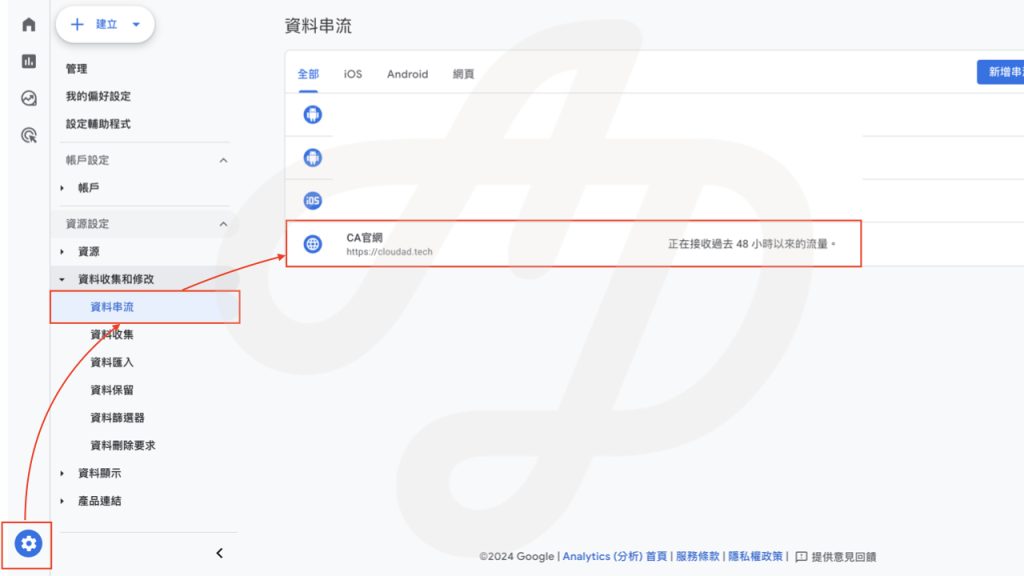
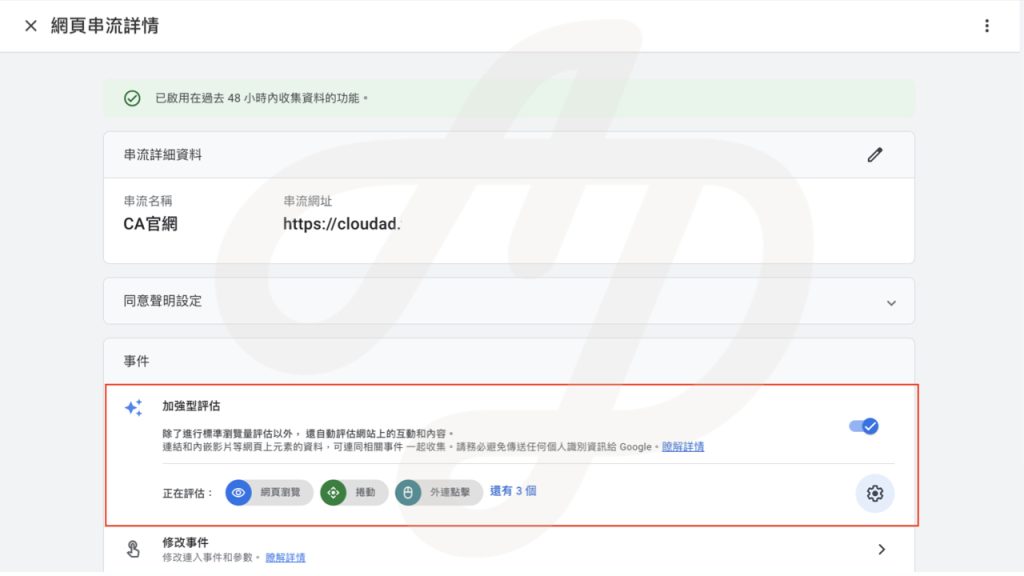
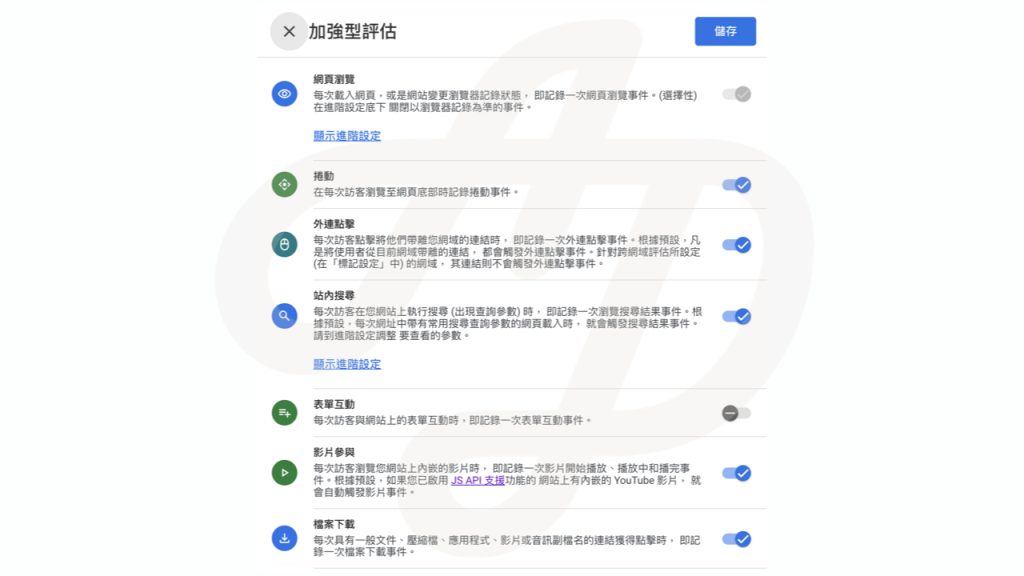
In the GA4 Admin interface, select your web data stream. There you can turn Enhanced measurement on or off for that stream. (Yes, Enhanced measurement only supports websites. If you select an app stream, you won’t see this feature.) Click the gear icon in the Enhanced measurement section to turn individual Enhanced measurement events on or off.
2. GA4 Enhanced measurement events and how to use them
a. Scrolls: the scroll event
You’ve worked hard to write an article. Apart from page views and engagement time, what other data can tell you how it performed? The Enhanced measurement scroll event tracks when users scroll to the bottom of a page. You can see whether each article or page was read to the end, and use that to infer how interested users are in the content. The first time a user scrolls to the bottom of a page or article, GA4 records one scroll event along with the scroll percentage (parameter name: percent_scrolled).
b. Outbound clicks: the click event
A click event is recorded each time a user clicks a link that takes them away from the current domain. For example, clicking a link on a brand website to its Facebook page, Instagram, LINE official account or a phone number will trigger a click event. Each click event records the link URL (parameter name: link_url). In later analysis, you can break down click events by link URL to see how often users click the LINE link or the phone link on your pages.
c. Site search: the view_search_results event
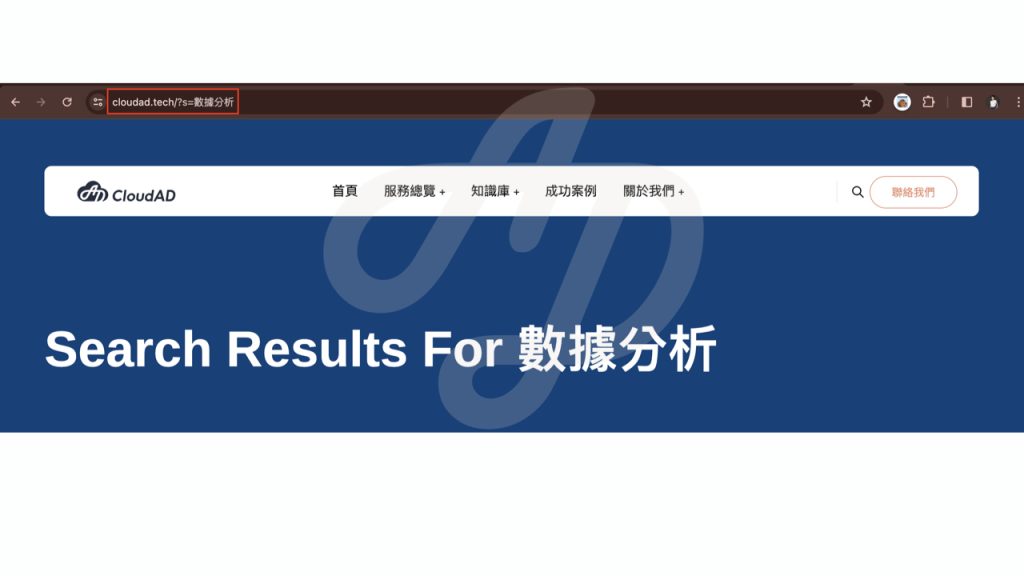
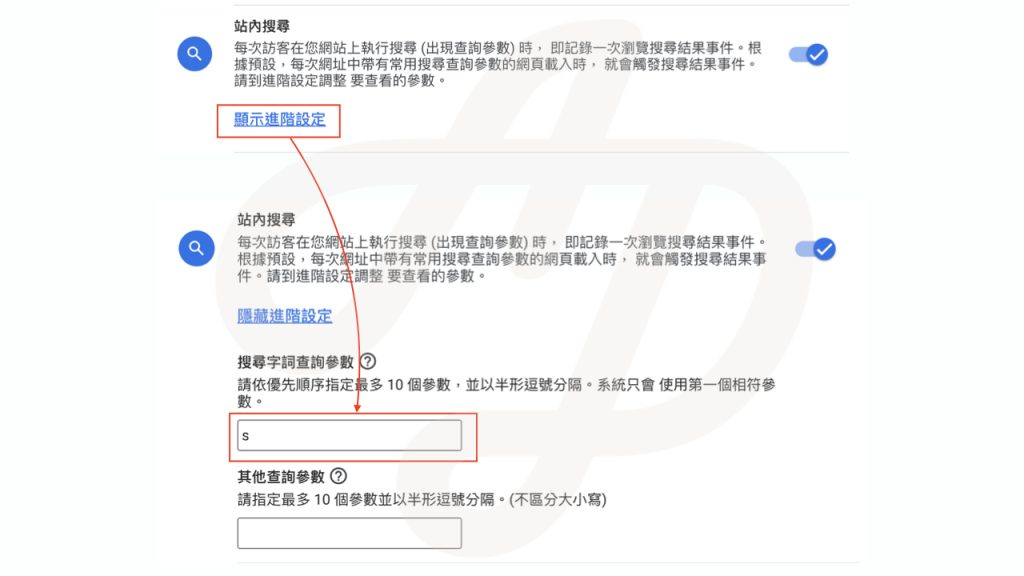
Each time a user sees a search results page, GA4 records the keyword from the query parameter in the URL. Every website uses a different query parameter. For example, if you search for the keyword “數據分析” (data analysis) on the CloudAD website, the search results URL is “https://cloudad.tech/?s=數據分析”. Here, s is the CloudAD website’s query parameter, and GA4 records the keyword “數據分析” in the search_term parameter.
Set the correct query parameter for your own website. With this event you can find the most popular site search keywords, understand which topics interest your users, and use this as a basis for discussing changes to your web content.
d. Video engagement: the video_start, video_progress and video_complete events
For embedded YouTube videos with JS API support enabled, GA4 collects a video_start event when a video starts playing, records playback progress through video_progress events, and collects a video_complete event when the video ends. All video engagement events record the embedded YouTube video’s title (parameter name: video_title), the video URL, and whether the video was visible on the user’s screen during playback or playing in the background.
If your website uses a range of video assets, video engagement events show how users interact with each video, so you can evaluate how well your video marketing assets perform. If you’re not sure how to enable the JS API, see this step-by-step guide.
e. File downloads: the file_download event
A file_download event is recorded when a user clicks a link on your site whose URL contains a document file extension. For the full list of tracked file extensions, see the official documentation. The file_download event records the file name and extension. For example, if you want to measure how many times an application form (.docx) or a GA4 data analysis PDF on your page was downloaded, you can use this event’s data.
f. Form interactions: the form_start and form_submit events
GA4 automatically records a form_start event when a user starts interacting with a form, and a form_submit event when the user clicks the form’s submit button. With the form start and form submit events, you can see how far users get from starting a form to completing it, or compare completion across different forms. This gives you a data foundation for optimising form design.
Note that if a form is incomplete or fails validation and is not actually sent, the Enhanced measurement form_submit event will still record that the user clicked submit. If you only want form_submit to be recorded when the user has entered the verification code correctly and the form has been sent, we recommend turning off form interactions in Enhanced measurement and setting up the event yourself in Google Tag Manager.
Once you start collecting Enhanced measurement data, you will see these events in the Events report.
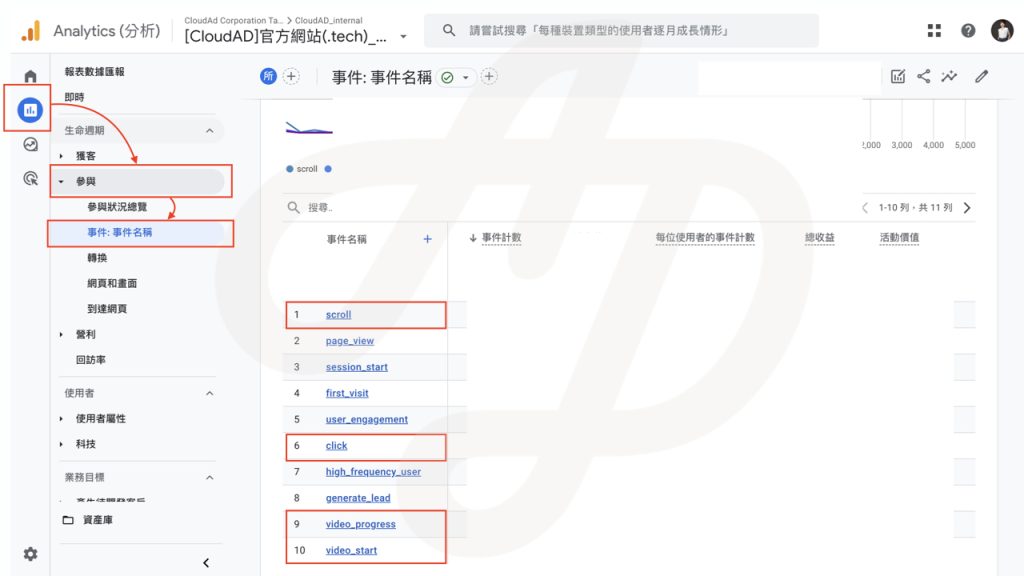
Make sure GA4 on your website is tracking and recording these behaviours. Then, based on the questions you want to explore, look at the matching dimensions and metrics in GA4 reports to gain insight into how users interact with your website.
Want to learn more about using GA4? Get in touch.