
Introduction: why use GTM to manage tracking codes?
Google Tag Manager (GTM) is a powerful tag management tool that simplifies deploying and managing tracking codes on your website. With GTM, marketers can easily integrate key tracking tools such as Google Analytics 4 (GA4) and the Facebook Pixel (Meta Pixel) without frequently changing the website’s code. This not only greatly improves efficiency but also helps ensure data is accurate and timely, providing a solid data foundation for optimising ad performance and SEO rankings.
Preparation: a pre-installation checklist
Before you start, make sure you have completed the following:
- A Google Tag Manager account and container: if you haven’t created one yet, go to the GTM website to set it up.
- A Google Analytics 4 property and data stream: make sure you have created a GA4 property in Google Analytics, set up a web data stream for your site, and have its Measurement ID (in the format G-XXXXXXXXXX).
- A Facebook Pixel ID: go to Meta Events Manager, create or find your Facebook Pixel, and get the Pixel ID.
- Website admin access: make sure you have permission to install the GTM container code on your website.
Part 1: step-by-step guide to installing GA4 with GTM
Follow these seven standard steps to deploy GA4 tracking quickly through Google Tag Manager:
- Log in and select: log in to your Google Tag Manager account and select the website container you want to configure.
- Add a tag: click Tags in the left-hand navigation, then click the New button in the top right.
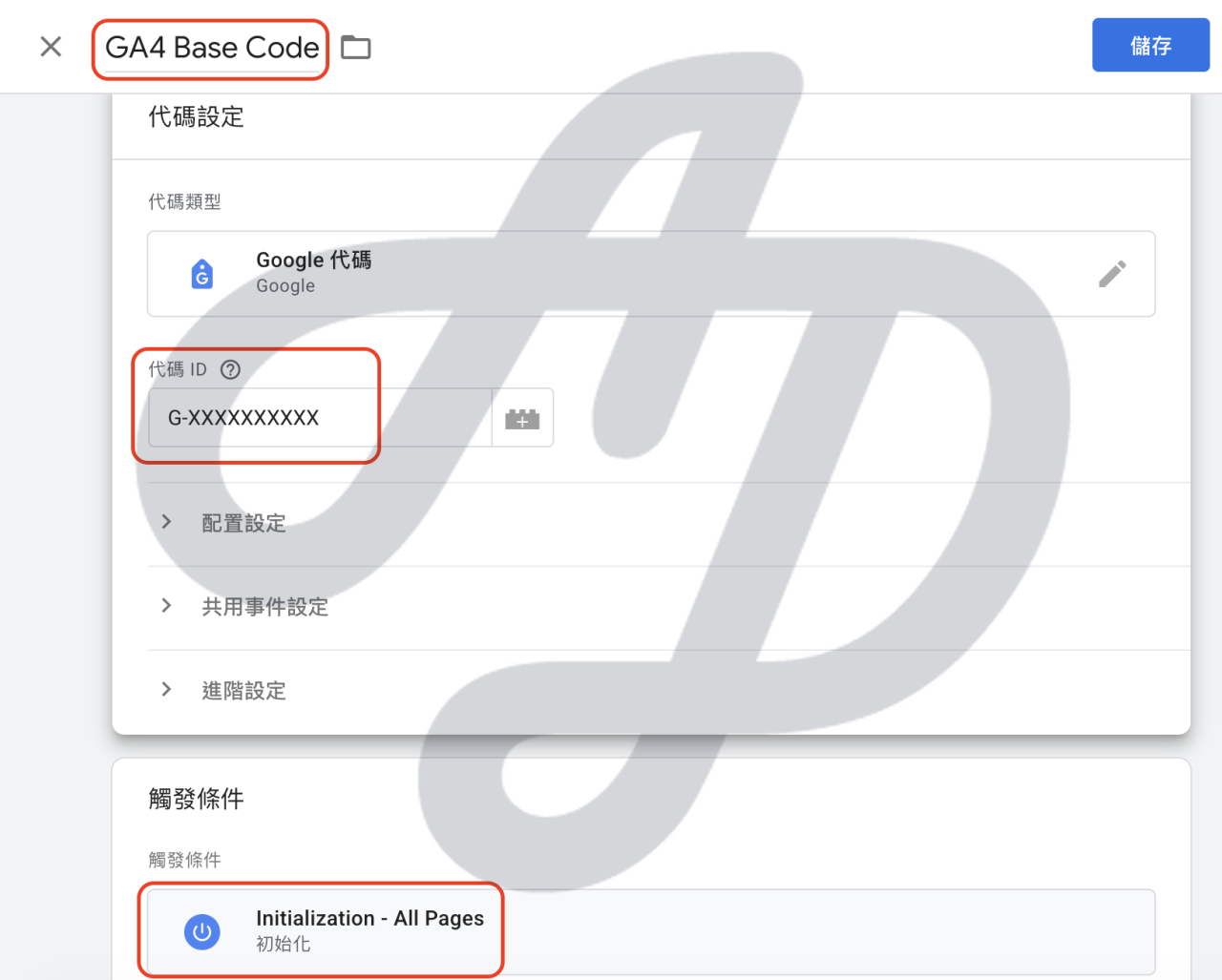
- Set the tag type: click the Tag Configuration box and choose Google Tag from the menu that appears.
- Enter the Measurement ID: in the Tag ID field, paste the Measurement ID you copied from your GA4 data stream (in the format G-XXXXXXXXXX).
- Set the trigger: click Triggering and choose “Initialization – All Pages”, so the tag fires early in the page load.
- Name and save: give the tag a name (for example “GA4 Base Code”), then click Save in the top right.
- Publish: once you’ve checked everything, click Submit in the top right and publish, so tracking goes live.
Part 2: step-by-step guide to installing the Facebook Pixel (Meta Pixel) with GTM
Although the GTM Community Template Gallery offers a Facebook Pixel template, we recommend installing the base code with Custom HTML for maximum compatibility and flexibility:
- Log in and select: log in to your Google Tag Manager account and select your website container.
- Add a tag: click Tags in the left-hand navigation, then click the New button in the top right.
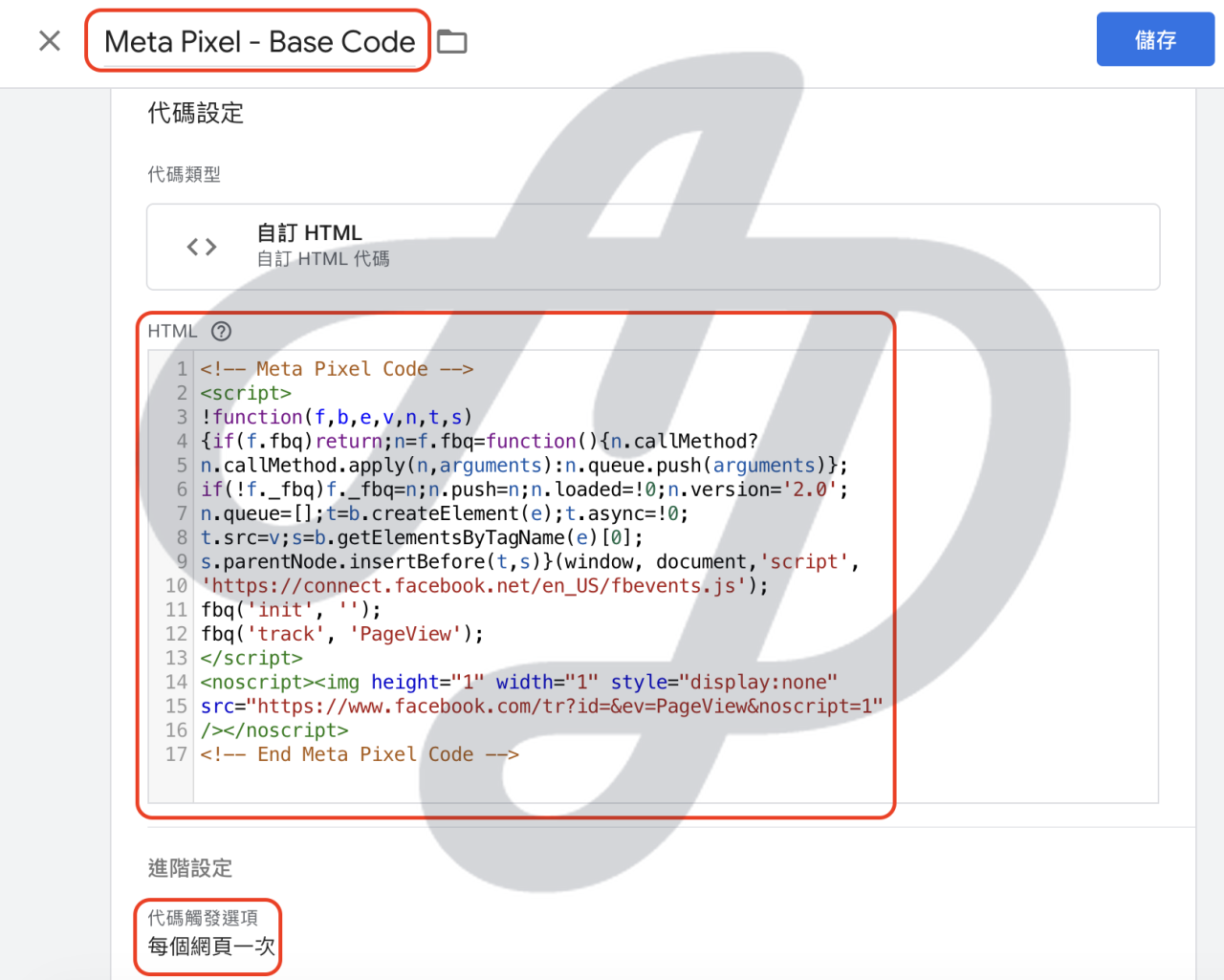
- Set the tag type: click the Tag Configuration box and, under “Choose tag type”, select Custom HTML.
- Paste the base code: paste the full Facebook Pixel base code you copied from Meta Events Manager into the HTML field.
- Optimise advanced settings: under Advanced Settings, set Tag firing options to Once per page, to avoid duplicate firing that would affect data accuracy.
- Set the trigger: click Triggering and choose All Pages.
- Name and save: give the tag a name (for example “Meta Pixel – Base Code”), then click Save in the top right.
- Publish: once you’ve checked everything, click Submit in the top right and publish, so tracking goes live.
Frequently asked questions
Q1: Why install GA4 and the Facebook Pixel with GTM instead of adding the code directly?
The main advantages of GTM are simpler management, greater efficiency and fewer errors. Managing tracking codes centrally in GTM brings these benefits:
- Self-service deployment: marketers can manage tags themselves without deep programming knowledge, greatly reducing reliance on developers.
- Lower risk: use GTM’s built-in Preview and Debug mode to test fully, avoiding faulty code that could break website features.
Q2: What’s the difference between GA4 and the Facebook Pixel? Do I need to install both?
The two complement each other, and we recommend installing both for a complete view of your data. The main differences are:
- GA4 (Google Analytics 4): focuses on comprehensive data analysis for websites and apps, providing insight into user behaviour and trend predictions.
- Facebook Pixel (Meta Pixel): focuses on optimising ad performance, including ad attribution, remarketing and building custom audiences.
Q3: What’s the difference between GTM’s “Google Tag” and the older “GA4 Configuration tag”?
In 2023 Google introduced the unified Google tag (gtag.js) framework to simplify deploying Google products:
- Simpler setup: you only need to set up one Google tag to send data to multiple Google destinations at once (such as GA4 and Google Ads).
- Easier management: it replaces the old approach of setting up a separate configuration tag for each product, making account structure leaner.
Q4: Is there anything special about installing GTM on a WordPress site?
For WordPress sites, you can choose an installation method that suits your technical skills:
- Plug-in integration: plug-ins such as GTM4WP handle code placement automatically and enable more advanced ecommerce data tracking.
- Manual installation: paste the GTM container code directly into your theme files (usually header.php). This suits users who don’t want to install too many plug-ins.
Conclusion: the first step towards data-driven decisions
Installing and managing GA4 and the Facebook Pixel flexibly through Google Tag Manager is not only key to more efficient website tracking but also the first step towards data-driven decision-making. Accurate data helps you understand user behaviour, optimise your marketing strategy, improve return on ad spend and ultimately grow your business. Start now and get the most value from your website data.
In the digital age, GA4 isn’t just a tool for large enterprises. Want to be part of this wave of data? Get in touch.