With Universal Analytics (also known as UA, GA3 or the old GA) retired in July this year (2023), have you already set up GA4 and started collecting data in your new GA4 property? Did you know there are still some key settings to make? Without them, you may not be able to see report data, analyse data over longer periods, attribute conversion credit properly, or keep your data collection clean.
Today we will take you through 7 important settings so you can collect more complete, cleaner and more accurate data, and use it to make decisions that add value towards your goals.
7 essential settings after setting up GA4
We have prepared clear step-by-step screenshots for each setting. You only need “Editor” access to the GA4 property to make these changes. Open GA4 alongside this post and check and complete these important settings with us.
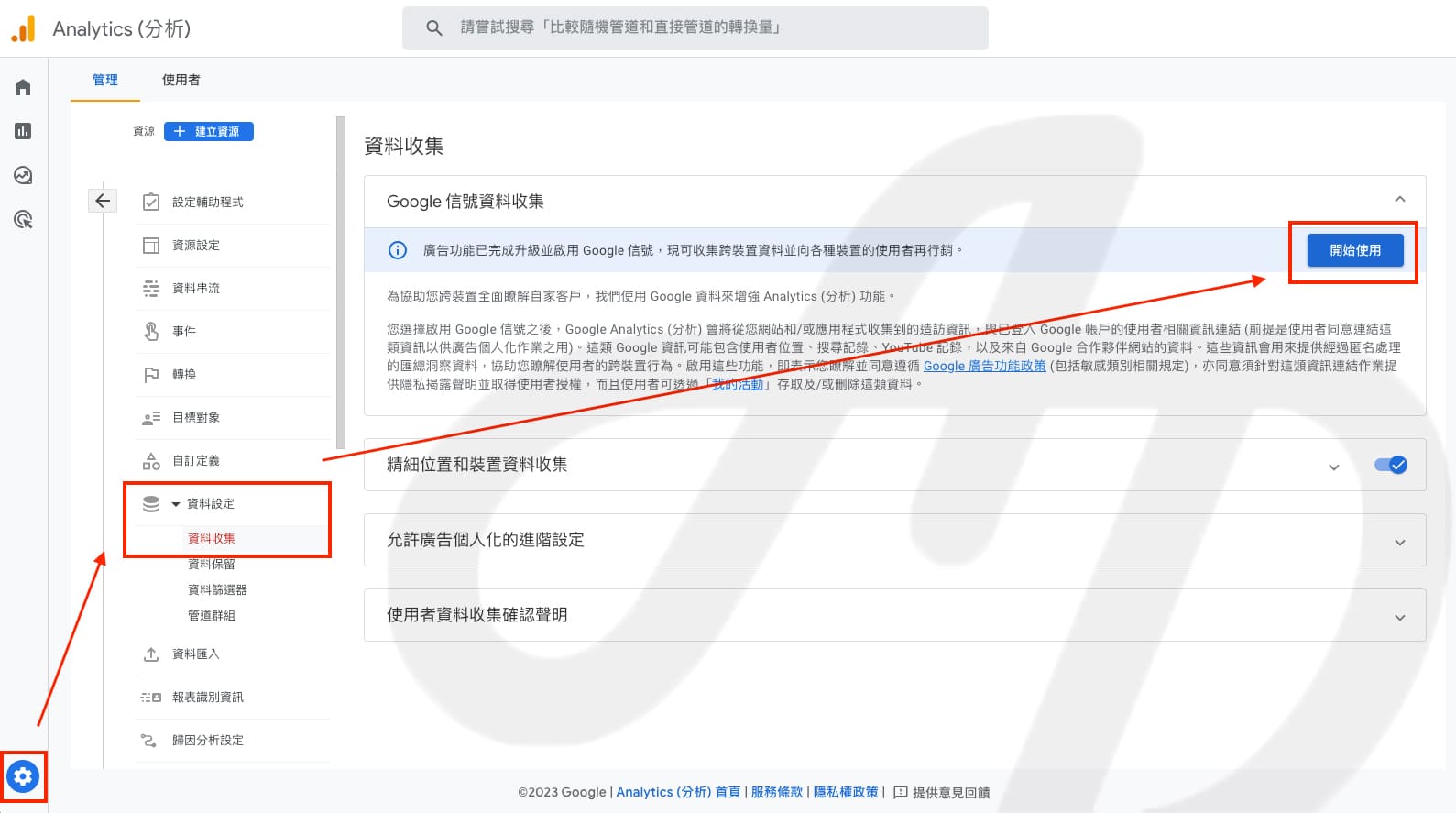
1. Turn on Google signals
The better we understand our audience, the closer we can get to them. Turning on Google signals lets us collect data such as age, gender and interests. This gives us a better chance of reaching high-potential customers when we develop strategies, run ads or look for influencers to work with.
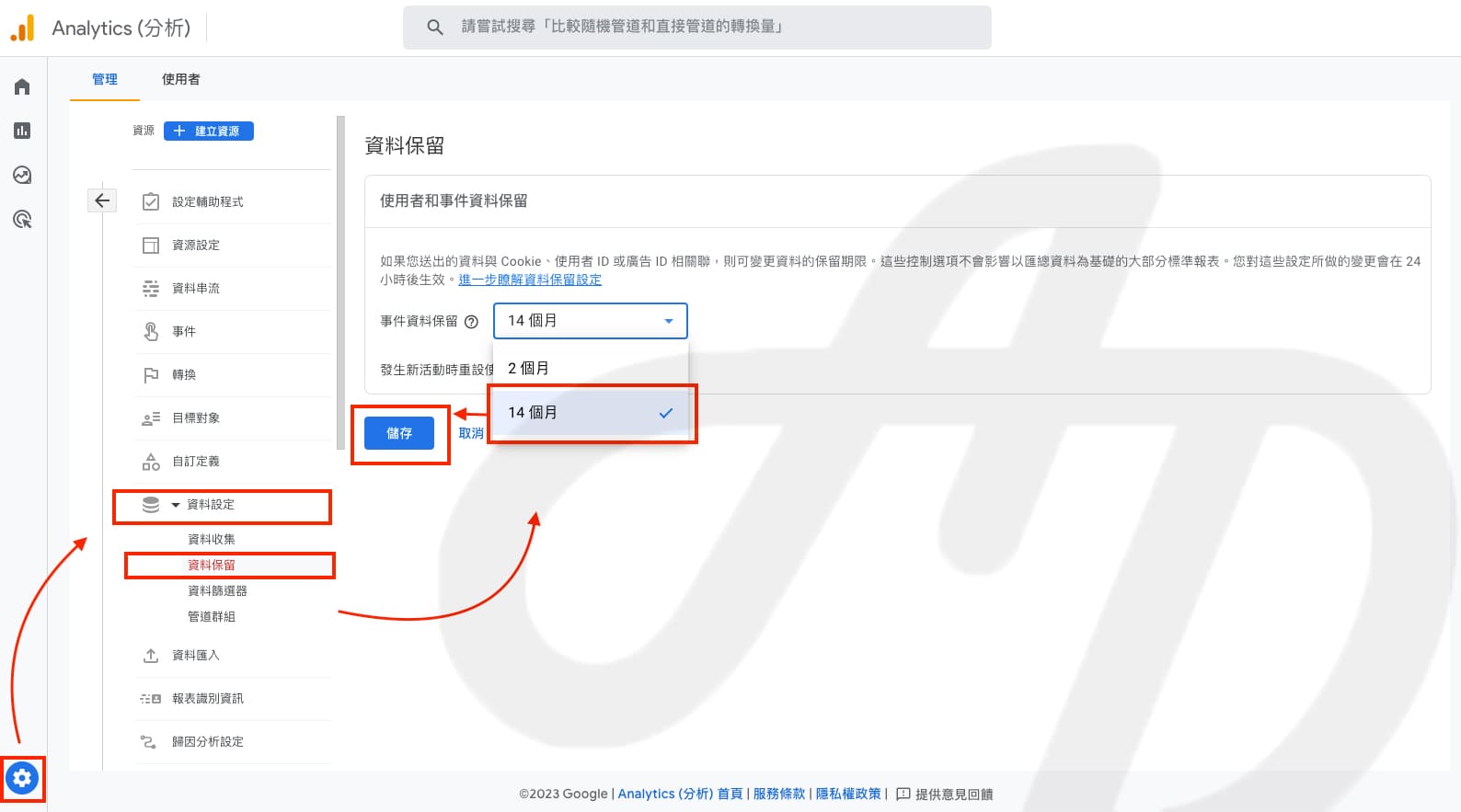
2. Set data retention to 14 months
This lets you look at longer time periods when you use Explorations for deeper, customised analysis, rather than only the last 2 months of data.
3. Exclude unwanted referrals
E-commerce websites usually send users through third-party payment and logistics steps before a purchase. To stop conversions being credited to the payment or logistics step just before the purchase, which makes it impossible to see how the original sources performed, we need to exclude the URLs of each payment and logistics provider.
This setting is tucked away quite deep, so follow the 4 steps below.
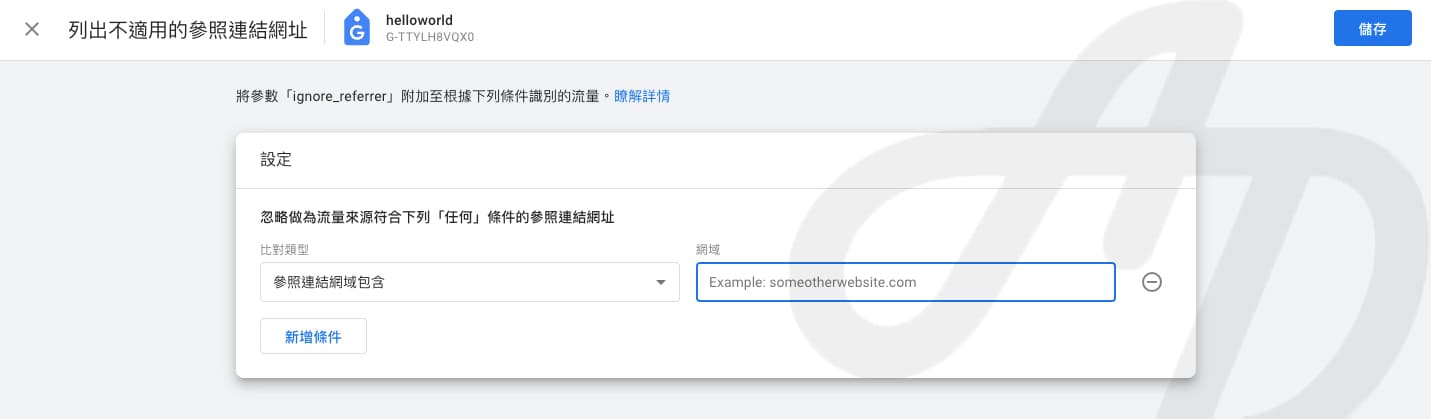
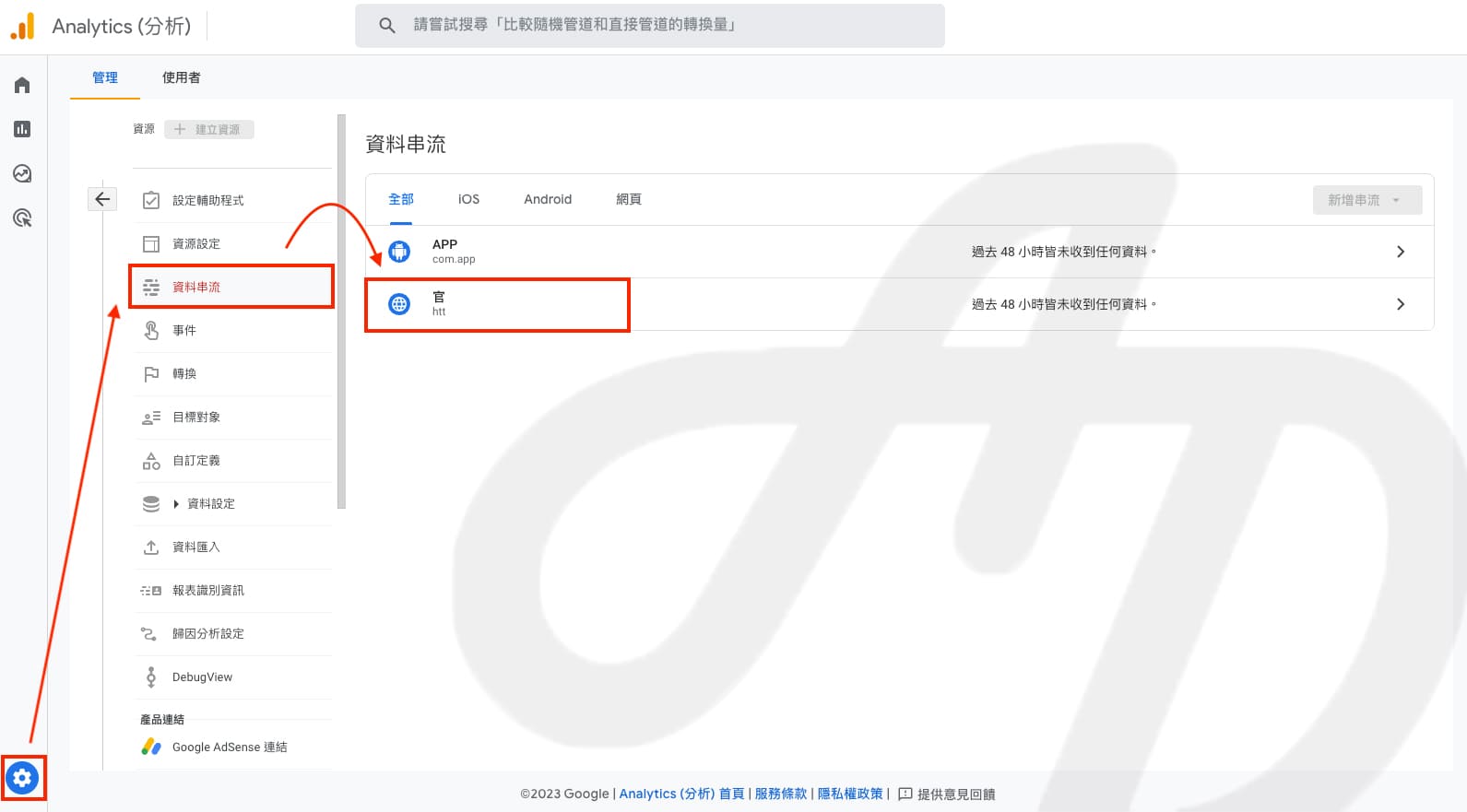
Step 1. Click the gear icon in the bottom left click Data streams click your web stream
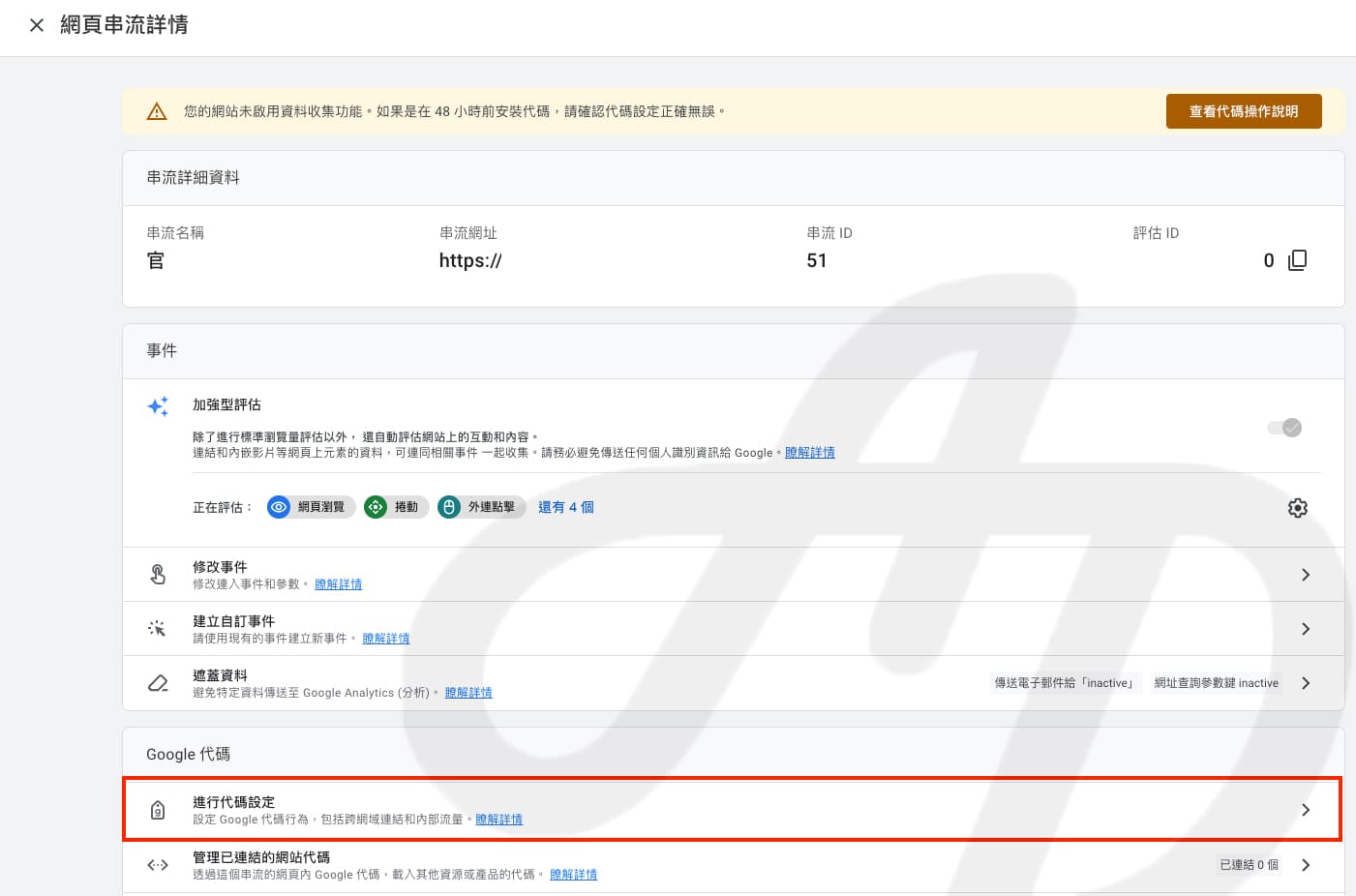
Step 2. Click “Configure tag settings”
Step 3. Click “Show more” click “List unwanted referrals”
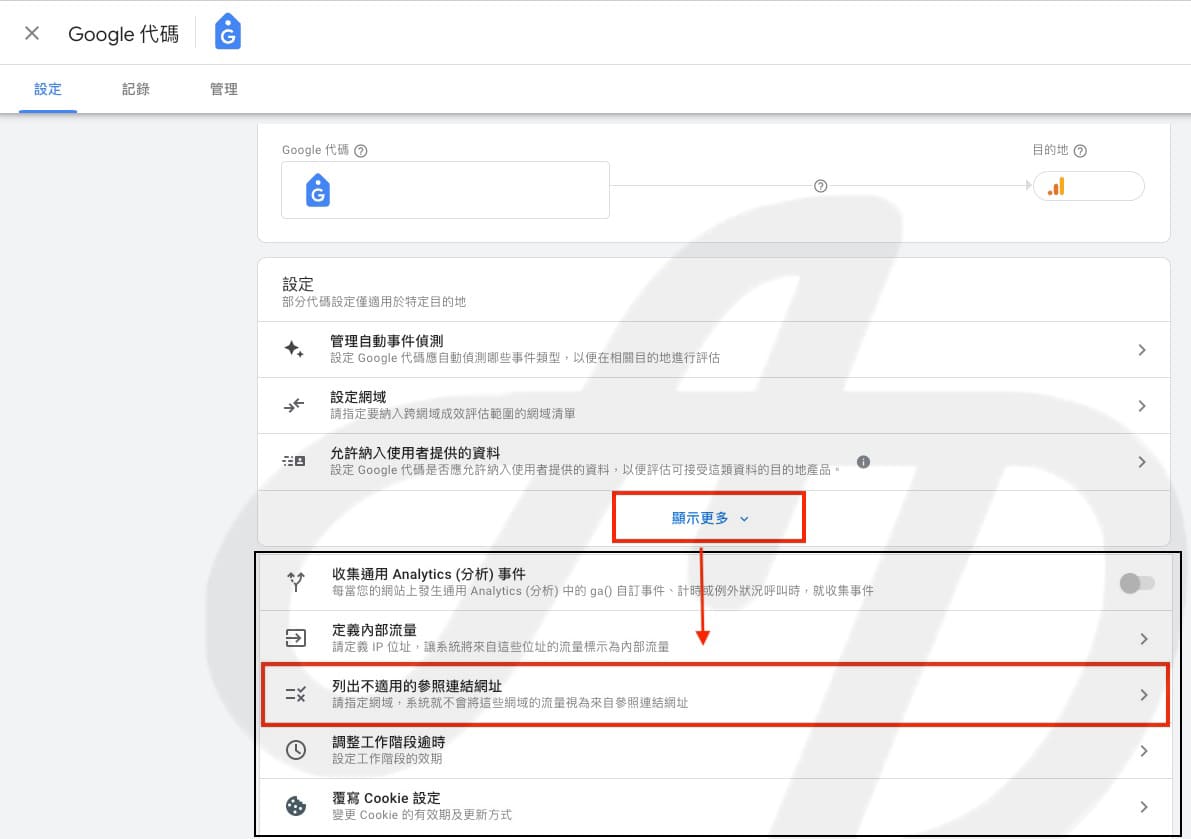
Step 4. Enter the URLs to exclude click “Save”
Below are some common logistics, payment and member login domains for reference. Add the domains you actually need to exclude:
- 7-Eleven: emap.pcsc.com.tw
- FamilyMart (全家): map.com.tw
- LINE Pay: web-pay.line.me
- 綠界 (ECPay): payment.ecpay.com.tw
- LINE Login: access.line.me
4. Exclude internal traffic
When you look at the users of your website and app, if you haven’t excluded internal traffic first, your data will include the behaviour of your own staff and other developers. We all want to understand our audience’s behaviour and profile better, so after setting up GA4, exclude internal traffic to get more accurate data.
Like the previous setting, this one is tucked away quite deep. Follow the detailed steps below.
Step 1. Click the gear icon in the bottom left click Data streams click your web stream
Step 2. Click “Configure tag settings”
Step 3. Click “Show more” click “Define internal traffic”
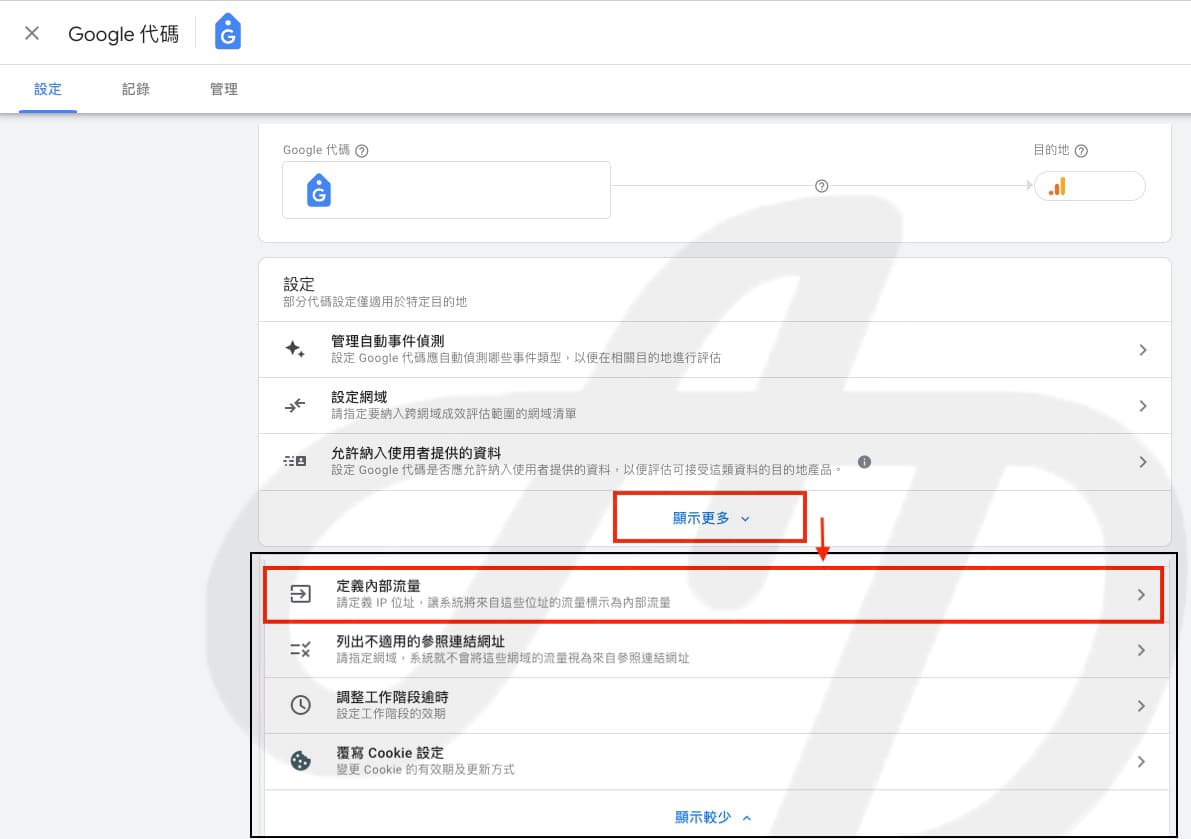
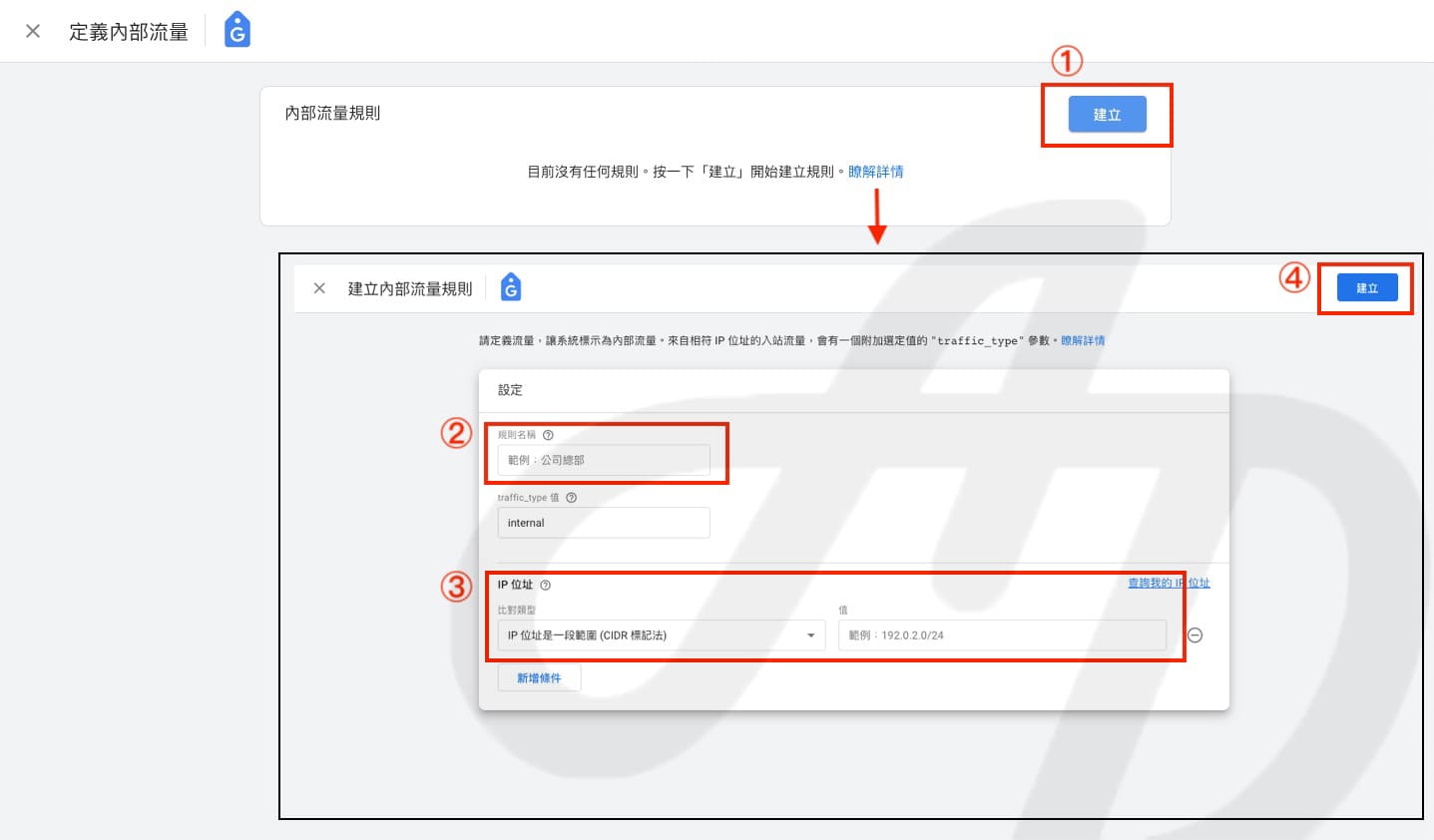
Step 4. Click “Create” enter an easy-to-recognise rule name enter the IP addresses to exclude click “Create”
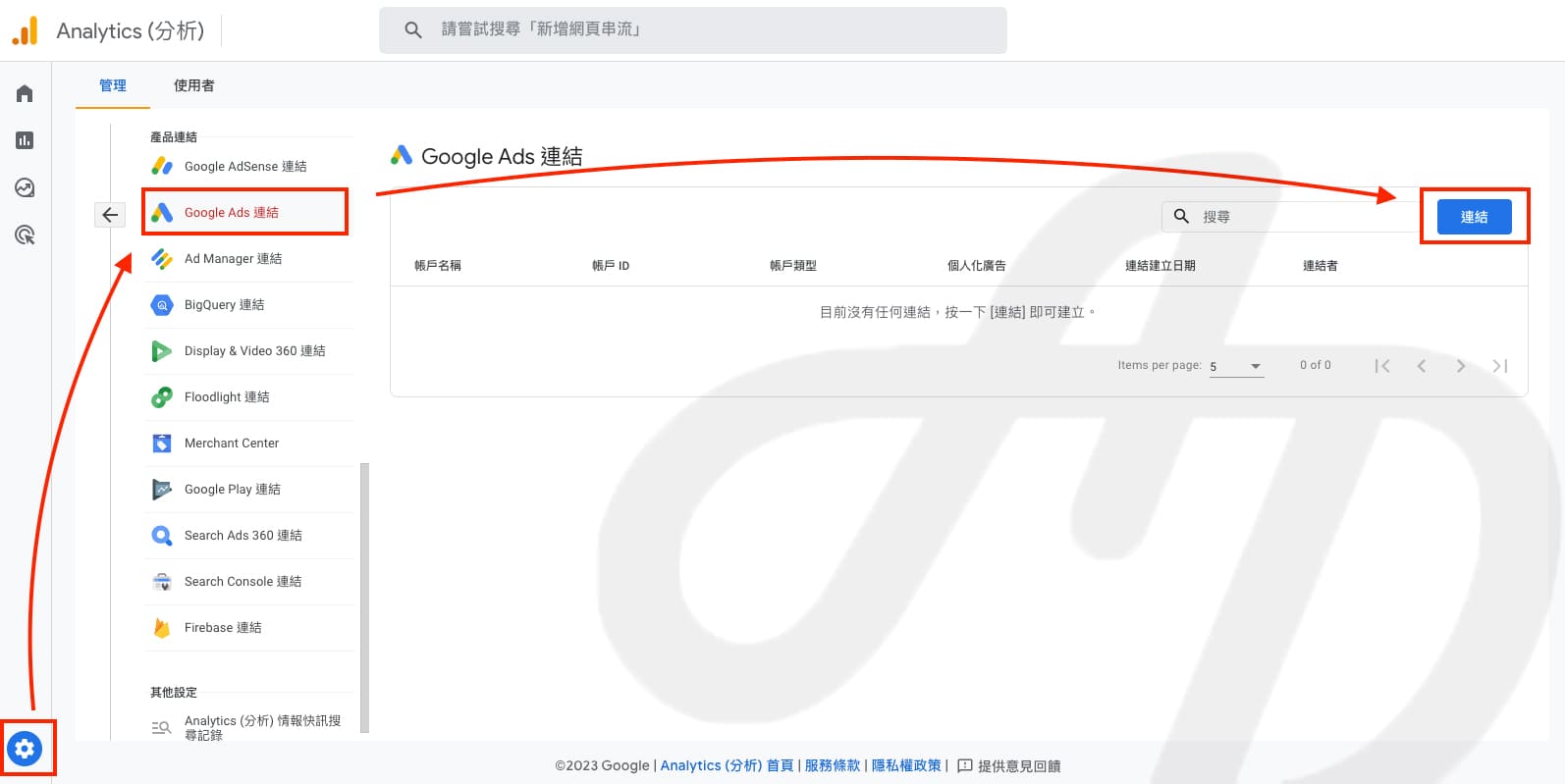
5. Link Google Ads
If you run ads on Google Ads, make sure you link it. This lets you see Google Ads data in GA4 reports, import GA4 conversions into Google Ads, and use GA4 audiences to strengthen your Google Ads remarketing.
6. Link BigQuery
Data stored in GA4 is only kept for a limited time, and report data may be sampled, compressed or hidden because of system limits. Exporting data to BigQuery lets us decide how long to keep it and gives us the complete raw data. We can also combine it with first-party data, such as offline sales data and customer relationship management (CRM) data, to segment and analyse member behaviour at a broader level and connect online and offline purchasing behaviour.
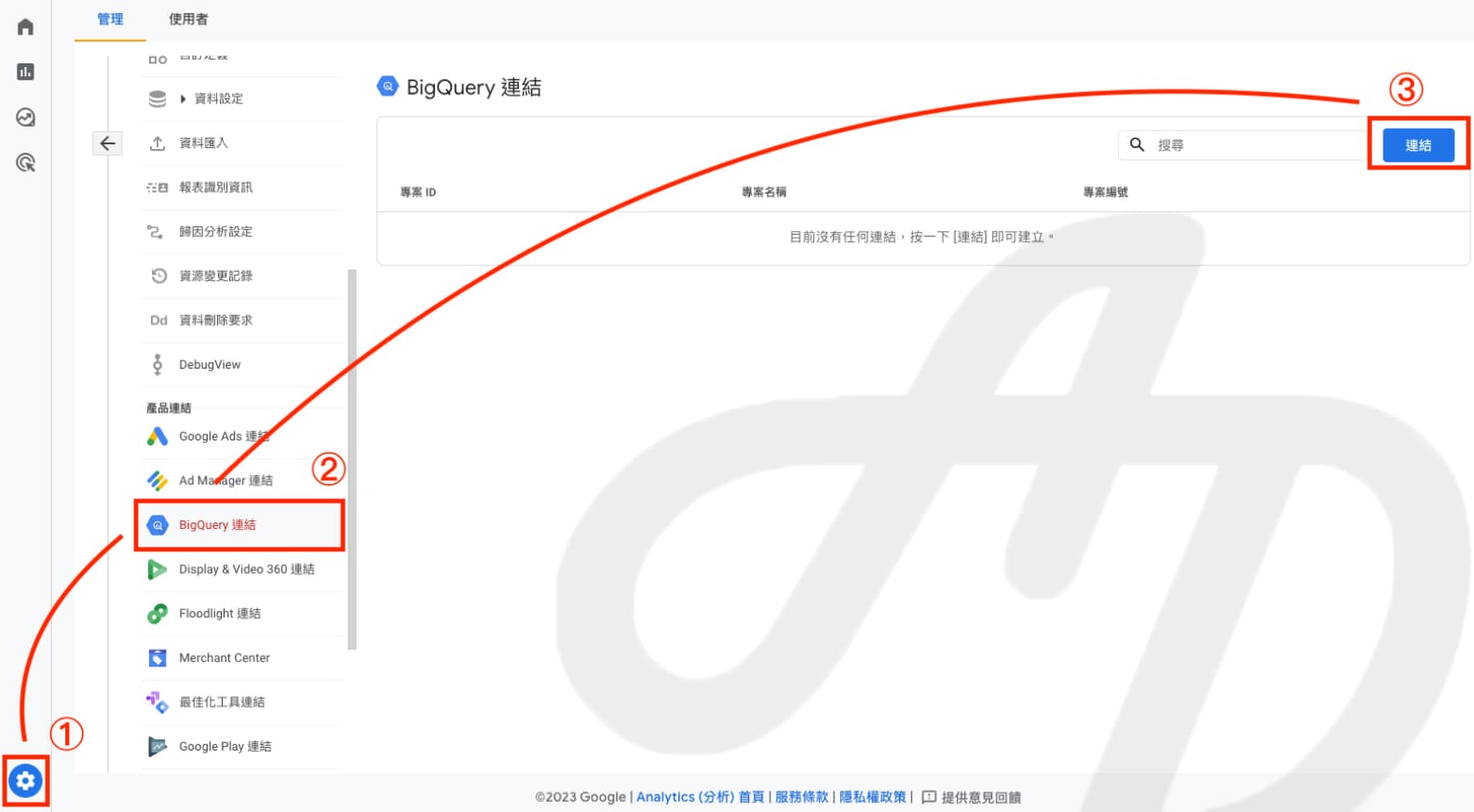
For more on the benefits of connecting BigQuery and how to do it, see: What is BigQuery? 8 reasons to export GA4 data to BigQuery, plus a guide to connecting GA4 and BigQuery
7. Link Google Search Console
By linking Search Console, we can see organic search queries, landing pages, impressions, clicks, click-through rates and other data directly in GA4. We can use this data to optimise content and increase organic traffic to the website.
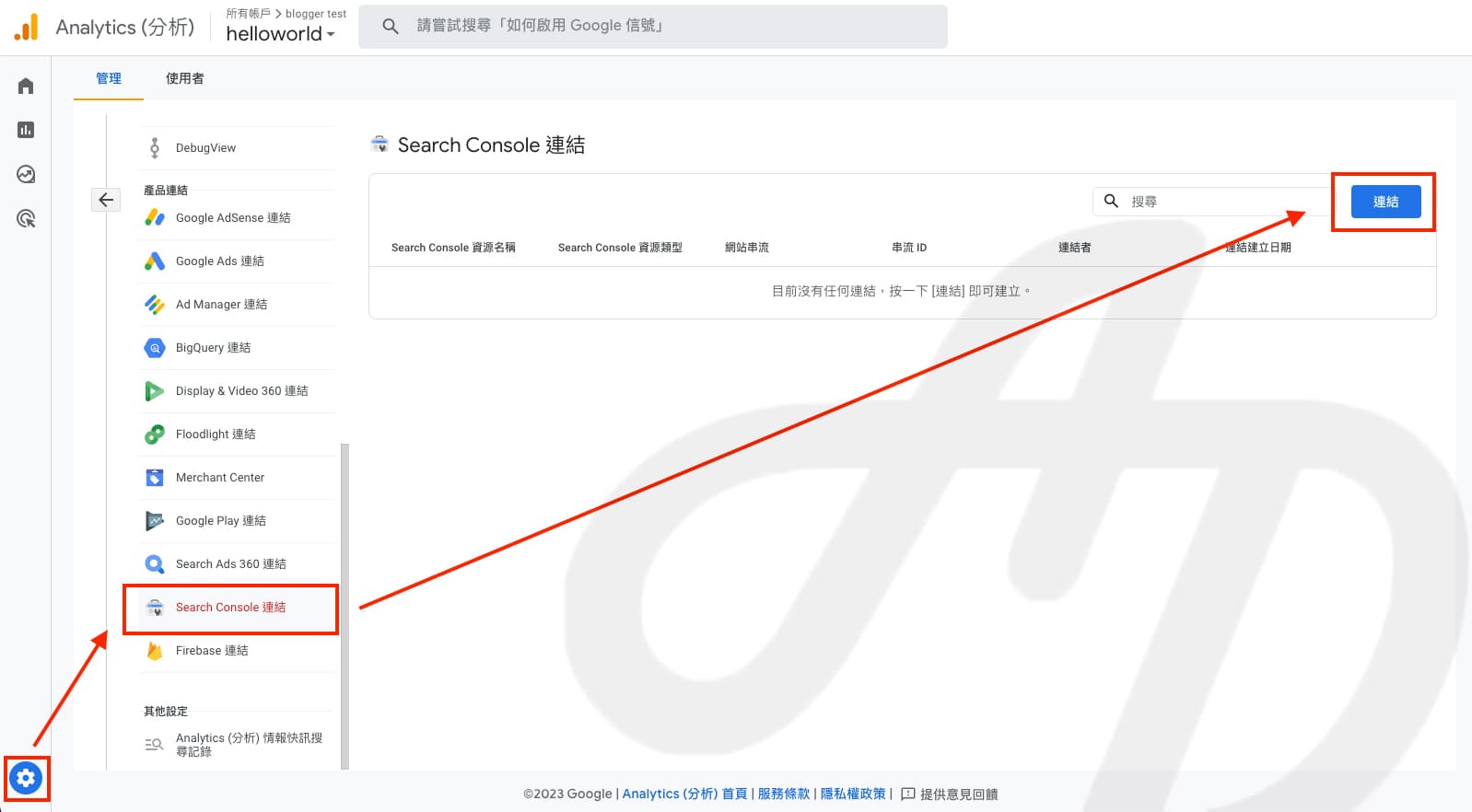
Have you completed all 7 settings? You are now one step closer to clean and complete data.
What about the data you worked hard to build up in Universal Analytics? Universal Analytics shut down for good on 1 July 2024: the interface and API can no longer be accessed, and data can no longer be exported. If you backed up your UA data at the time, you can refer to it alongside GA4; if not, rely on your GA4 data.
CloudAD has a professional team of data consultants with extensive experience in GA4 implementation and GA360 services. From small and medium-sized brands to multinational companies, we provide customised technical support and consulting based on each brand’s needs. If you are working out how to build a complete GA4 analytics setup, get in touch.