What value does connecting GA4 to BigQuery actually bring a brand, and how do you get started? Our brand clients ask these questions often. We explain the 8 main benefits of exporting GA4 data to BigQuery and take you through linking GA4 and BigQuery in 7 steps.
1. What is BigQuery?
BigQuery is a powerful cloud data warehouse and analytics tool developed by Google. It is fast, low-cost, highly integrated and easy to get started with, and is widely used to process large-scale data. BigQuery can manage many data sources and different types of data, and has built-in machine learning and business intelligence features to help us get the results of in-depth analysis.
2. 8 benefits of connecting GA4 to BigQuery
The BigQuery connection used to be a paid feature, and it is now finally free to use. So why connect GA4 to BigQuery? These 8 benefits will help you get more value from your data.
1. Unsampled raw data: in GA4, user-level data is kept for a maximum of 14 months. Explorations may be sampled (not 100% of the data) when there is too much data, and standard reports show data that GA4 has already aggregated. Data exported to BigQuery is the complete event-level and user-level raw data.
2. No compressed data: GA4 compresses all data beyond the row limit into an “(other)” row, so you can’t see the full data in reports. Once exported to BigQuery, every row of data is listed exactly as it is.
3. No thresholds: to protect personal privacy and stop individual users’ identities being inferred, reports often apply thresholds that hide data, especially for websites with low traffic. This stops us seeing actual visitor numbers and interactions. Data exported to BigQuery is not affected by thresholds.
4. Fresher data: BigQuery can get the latest data for the current day within minutes, with no need to wait several hours for GA4 to process it.
5. Real control over your data: the data you see in a GA4 property is affected by data retention and other system limits. With data exported to BigQuery, the brand decides how long to keep it and how to use it.
6. Advanced data processing: GA4 does not offer some dimensions and metrics, or does not let you view them together. With raw data in BigQuery, brands can use the data freely to see whatever they want to look at, and can also carry out predictive analysis and machine learning modelling.
7. Combine data sources: BigQuery can combine GA4 data with internal first-party data, such as offline sales data, customer relationship management (CRM) data or other external data. This gives you a broader view for segmenting and analysing member behaviour, and connects online and offline purchasing behaviour.
8. More intuitive visual reports: BigQuery can connect to a range of visualisation tools (such as Google Data Studio, Tableau and Power BI), so you can present data in many kinds of charts and are no longer limited to GA4’s default reports.
3. How to connect GA4 and BigQuery
Exporting your data gives you fresher, more complete data, and lets you use it in many ways. Let’s go to the GA4 interface and see how to link GA4 and BigQuery quickly in 7 steps.
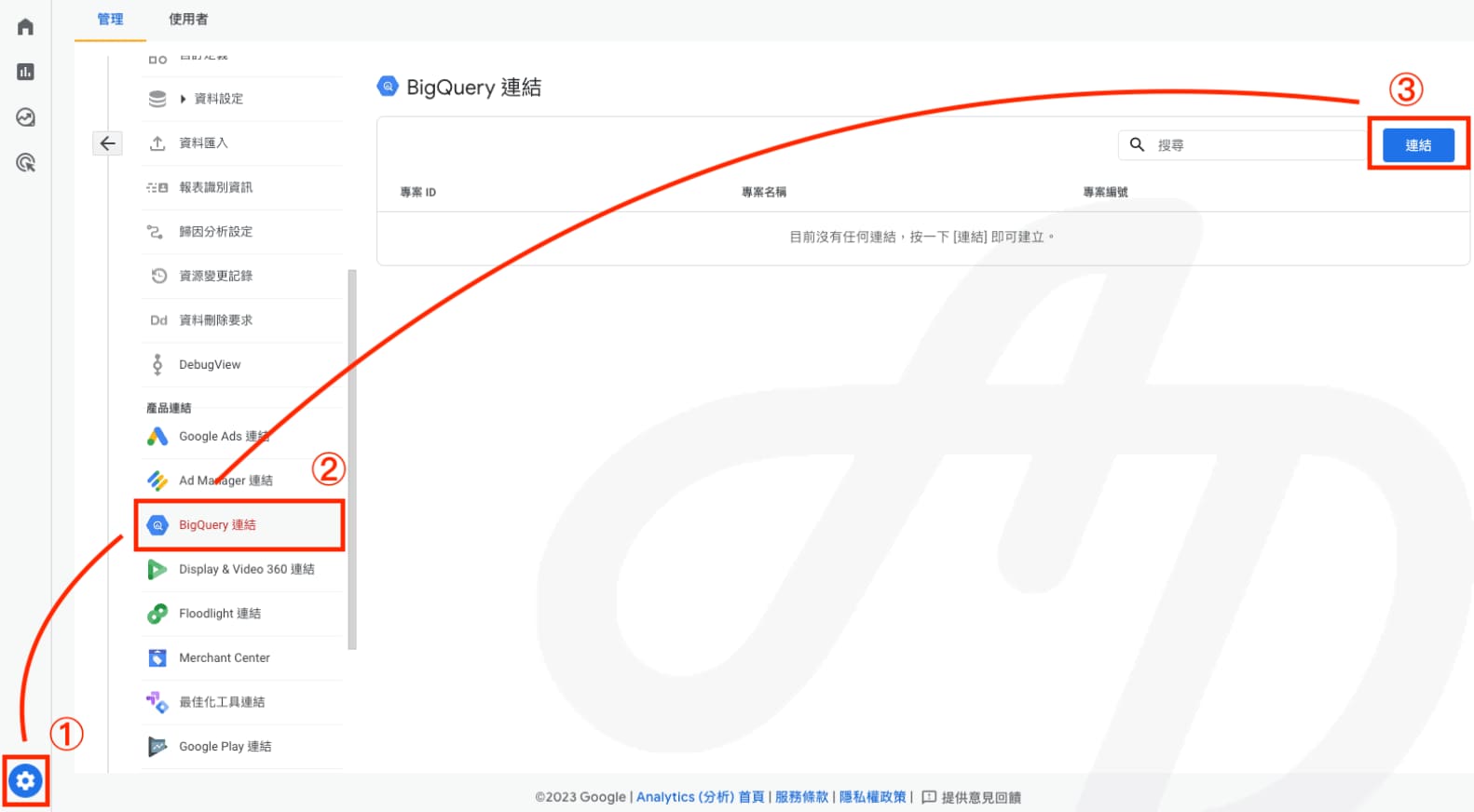
Step 1. Create a BigQuery link: in the GA4 interface, click the gear icon in the bottom left click “BigQuery links” click “Link”
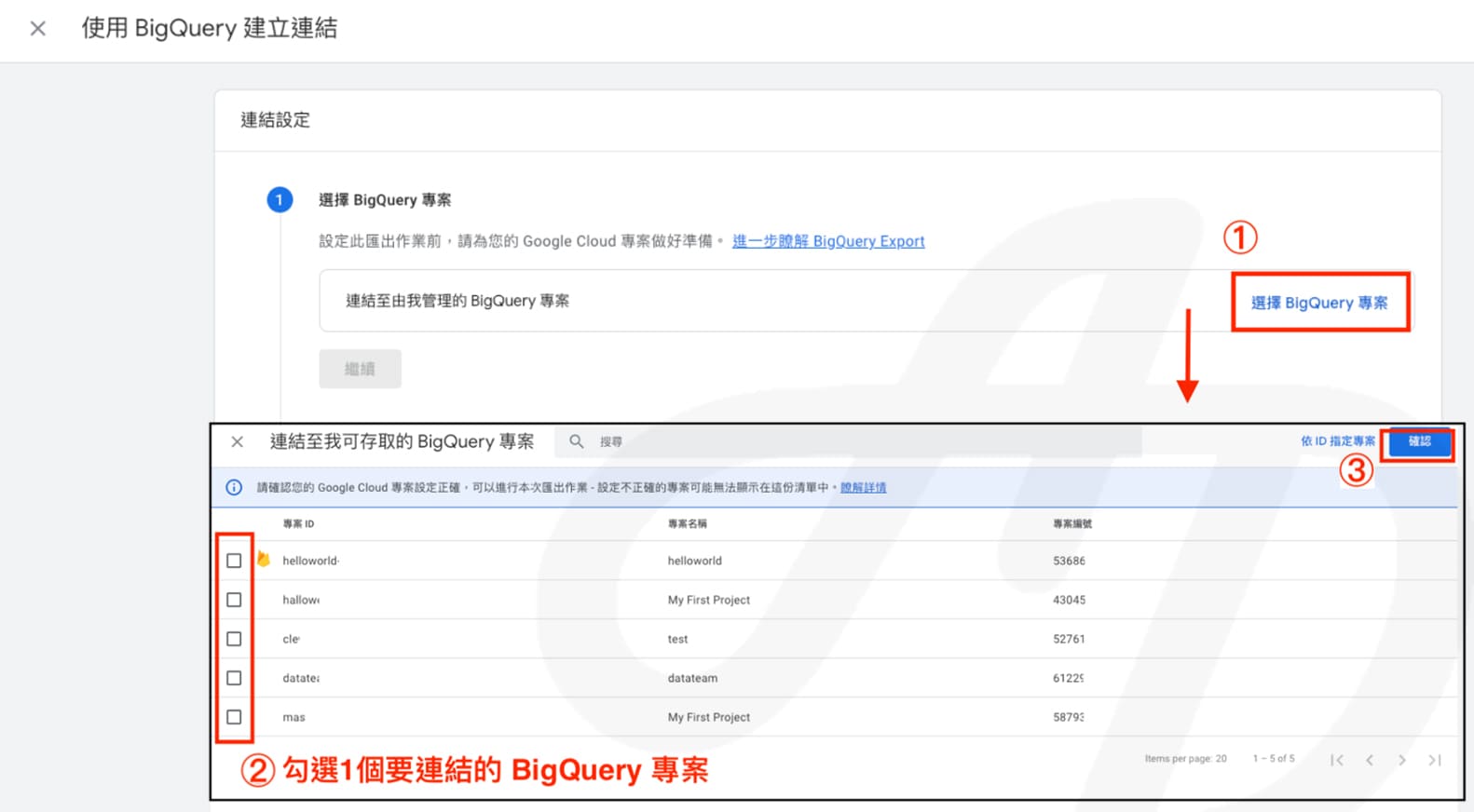
Step 2. Choose a BigQuery project: click “Choose a BigQuery project” tick the project you want to link click “Create”
- If there is no project to tick, you need to create a project in Google Cloud first
- You need “Owner” access to the BigQuery project to link it
- If you have already linked, or plan to link, GA4 and Firebase, we recommend linking to the same project so it is easier to combine with other Firebase data
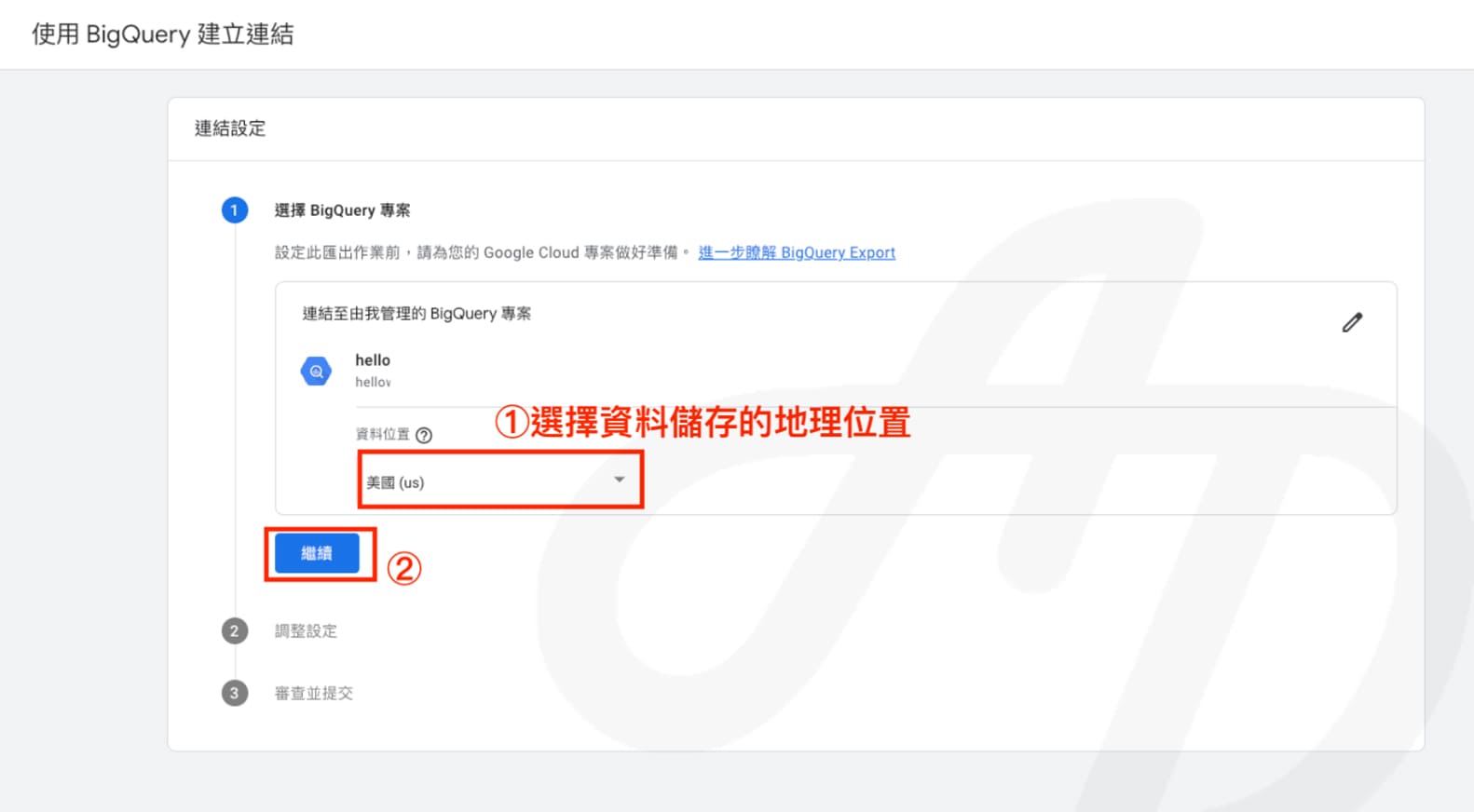
Step 3. Choose a data location: click the drop-down menu, choose where to store the data click “Next”
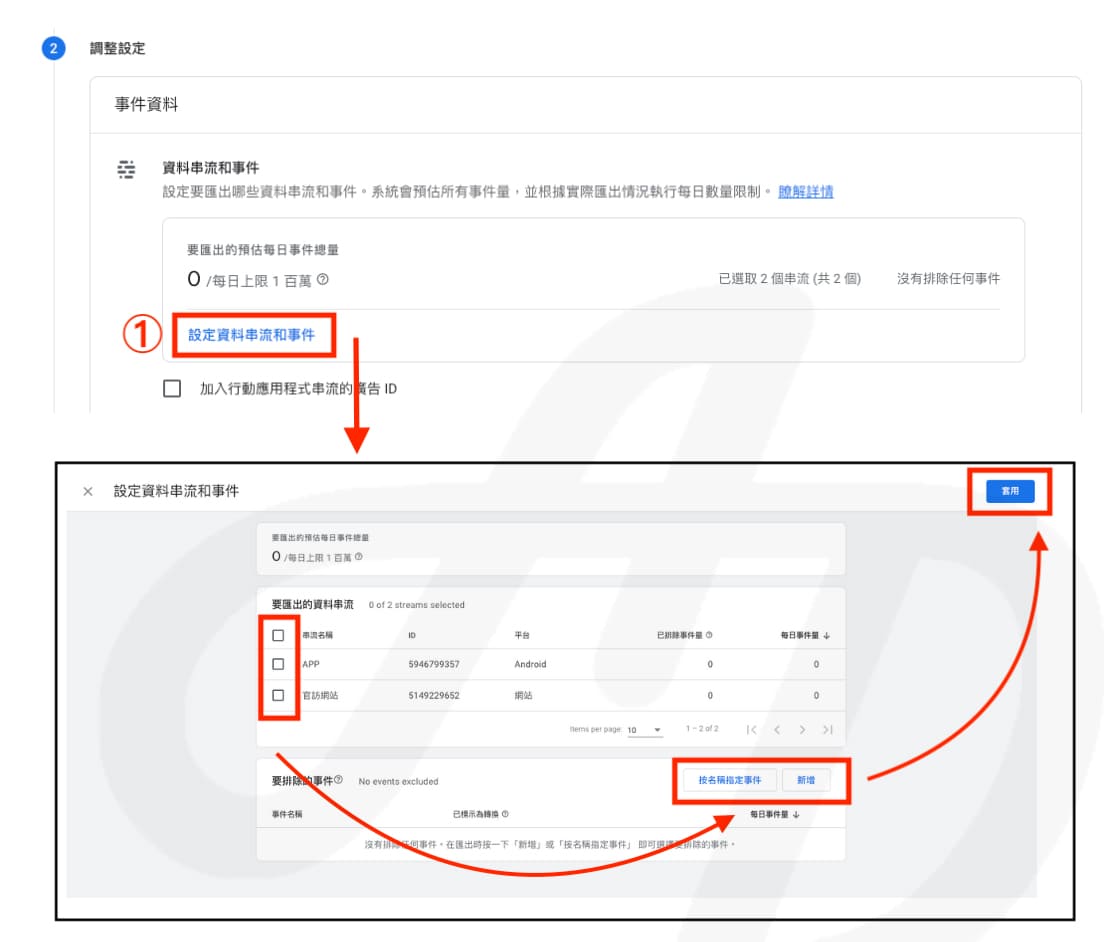
Step 4. Configure data streams and events: click “Configure data streams and events” tick the data streams to export add events to exclude (optional) click “Apply”
- If a standard GA4 property exports more than 1 million events a day, the export may be paused immediately. Even if you later set up the GA4 export to BigQuery again, the data from the paused period will still not be exported.
- To keep the daily export running, you can reduce the number of data streams exported or exclude events to lower the volume of exported events. Alternatively, upgrade to GA360 for an almost unlimited event export volume, which helps keep your data complete.
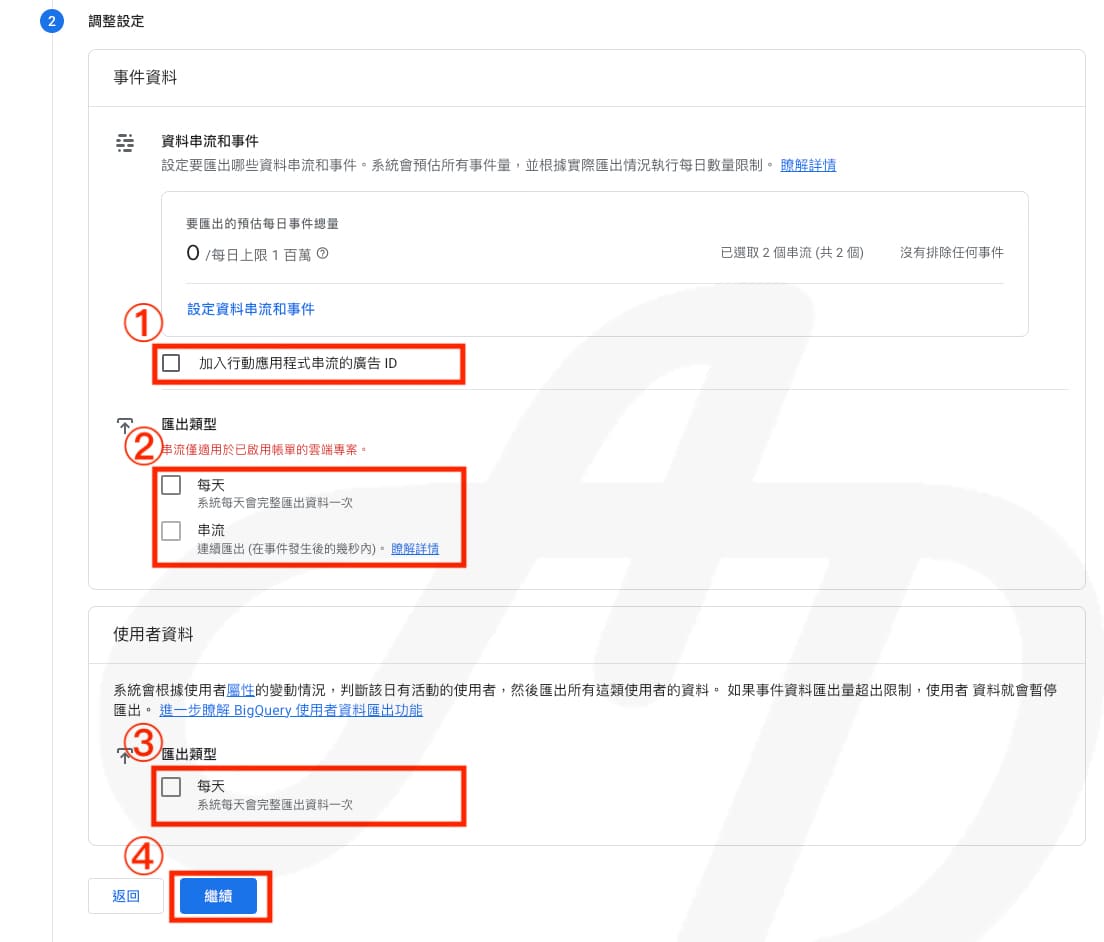
Step 5. Adjust other settings:
- Choose whether to include advertising identifiers for mobile app streams
- Choose the data export frequency
- Choose whether to export user data
- Click “Next”
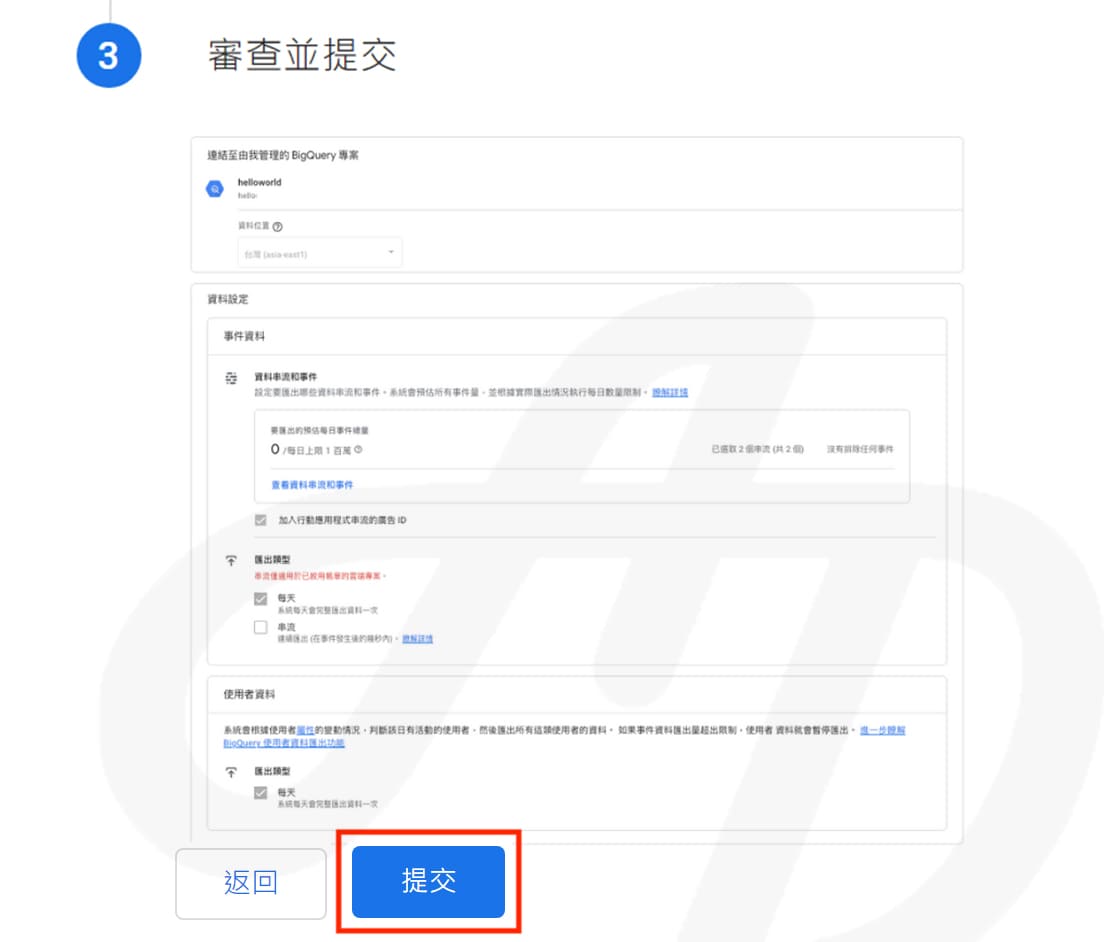
Step 6. Submit the BigQuery project link: click “Submit”
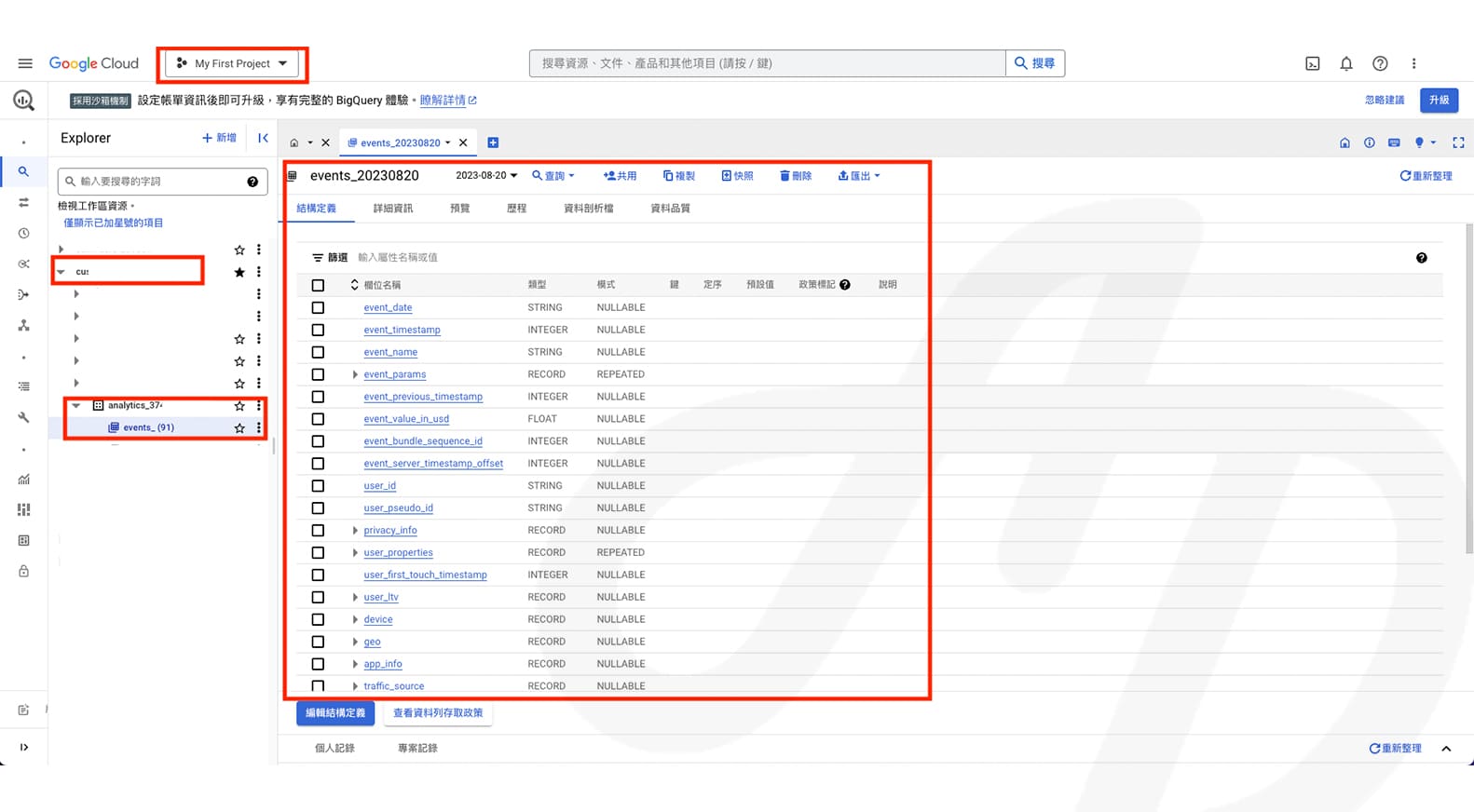
Step 7. Validate the data: once the link is set up, data usually starts flowing to the BigQuery project within 24 hours. If you use the daily export, the previous day’s data is exported shortly after midday each day (in the reporting time zone). You can then check the BigQuery project to see whether the data has arrived.
Finally, we have put together a table covering export settings, limits, types and schema, to help you understand the GA4 to BigQuery connection more clearly.
| GA4 export to BigQuery | Details | ||
| Event volume limit |
Standard: 1 million events per day 360: billions of events per day |
||
| Data settings |
Choose which data streams and events to export (helps control export volume and costs) |
||
| Export type | Daily | Frequency | A full export of the data once a day |
| Table name | events_YYYYMMDD | ||
| Storage / query costs | Free monthly allowance (10 GB storage, 1 TB queries); charges apply beyond that | ||
| Streaming | Frequency | Continuous export (within seconds of an event) | |
| Table name | events_intraday_YYYYMMDD | ||
| Export cost | US$0.05 per GB | ||
| Storage / query costs | Free monthly allowance (10 GB storage, 1 TB queries); charges apply beyond that | ||
| Export schema | Each row in the table represents one event | ||
Points to note:
- You need at least the GA4 “Editor” role to create a BigQuery link
- Connecting GA4 to BigQuery is free, but storing and querying data in BigQuery may incur extra costs
- The GA4 export to BigQuery does not include Google signals data or modelled data
- BigQuery exports from standard GA4 properties are limited to 1 million events per day. If a property keeps exceeding the export limit, the daily export will be paused, and the interrupted data cannot be backfilled later
Combining BigQuery and GA4 opens up a wide range of possibilities for your business. CloudAD has a professional team of data consultants with extensive experience in GA4 implementation, GA360 services and BigQuery integration. From small and medium-sized brands to multinational companies, we provide customised technical support and consulting based on each brand’s needs.
From BigQuery setup, data cleaning and preparation to personalised reports and training, our services help your team make full use of these powerful tools to work more efficiently, deliver a better user experience and achieve more. Get in touch and let us help you reach these goals.