With Google’s launch of AI Overview (AIO) and the spread of AI search engines such as ChatGPT and Gemini, user search behaviour is changing sharply. More and more traffic no longer comes only from the traditional list of search results, but from citation links inside AI-generated content.
As marketers, we need to know: what is the quality of the traffic AI brings? Do users referred by AI convert? How can we measure the performance of this new traffic in GA4? Below is a quick guide to AI traffic.
The two faces of AI traffic in GA4
Before going deeper, let’s look at what AI traffic looks like in GA4. At present, AI traffic falls into two types.
The first comes from external AI platforms such as ChatGPT, Claude, Perplexity and Gemini. GA4 treats this as referral traffic, for example chatgpt.com / referral.
The second is AI Overview traffic from Google Search. Unfortunately, Google does not currently separate this data from traditional search results, so visits that come through AI Overview clicks are still classified as google / organic in GA4 reports.
How to identify AI-referred traffic in GA4
How can we accurately pull traffic from external AI platforms out of GA4 reports? Because AI platforms and search engines change so quickly, GA4’s defaults cannot recognise these channels, so this new traffic ends up in the Unassigned black hole.
Don’t worry. Unassigned does not mean data is lost; it means the data has not been classified. We can use GA4’s custom channel groups to teach GA4 how to classify AI traffic.
GA4 setup steps
1. Admin > Channel groups
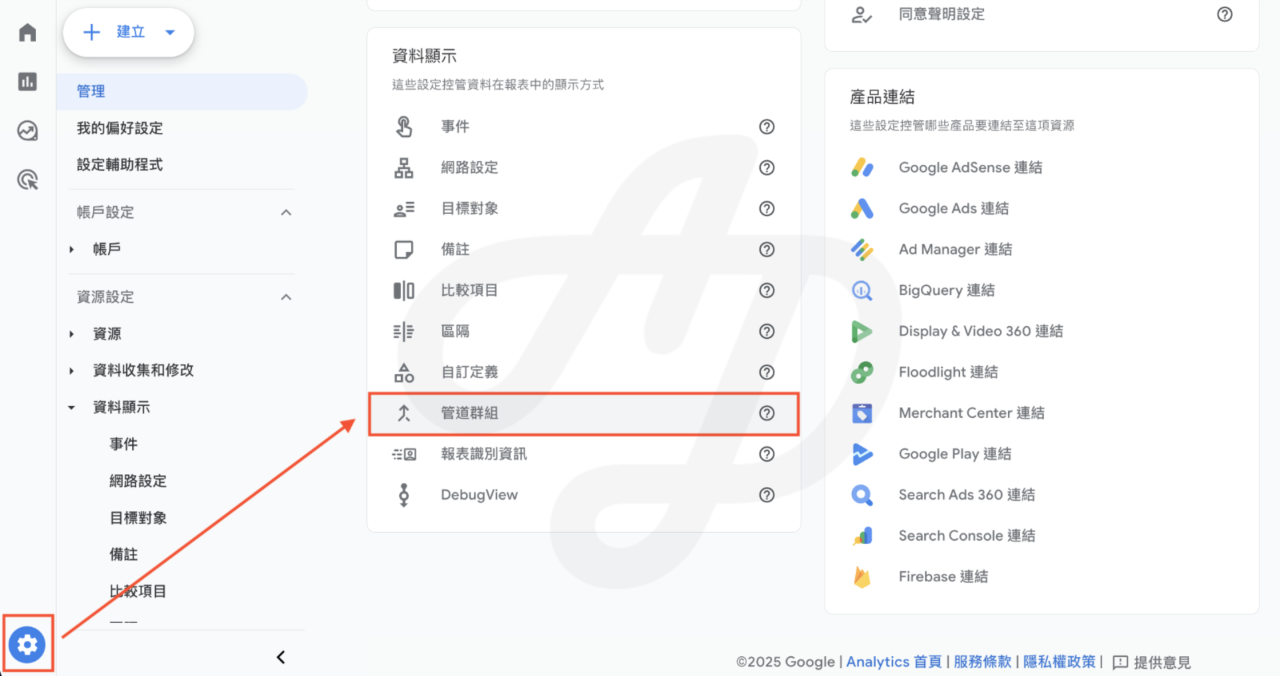
2. Create a new channel group
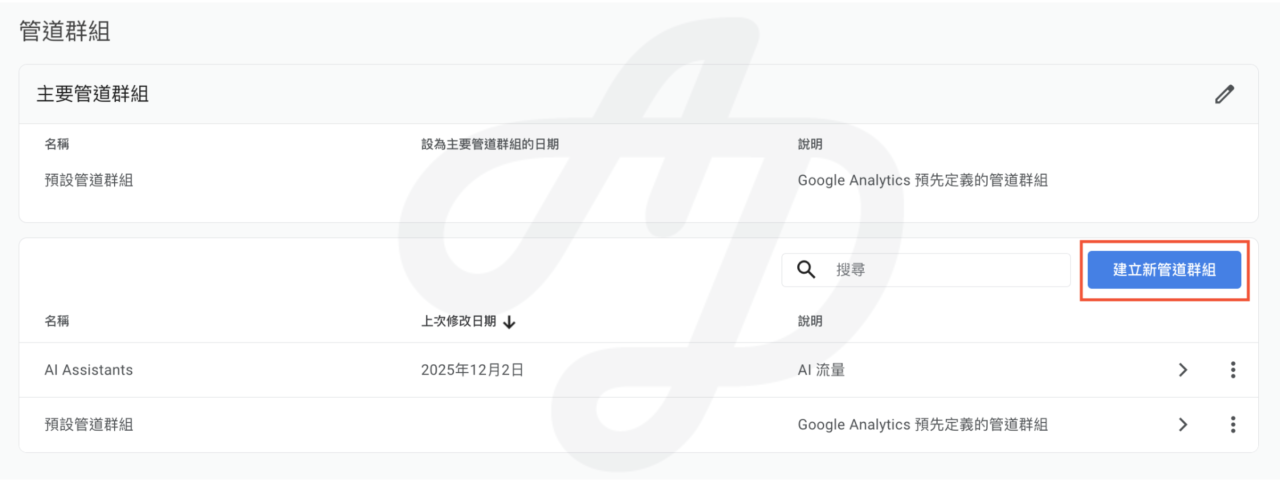
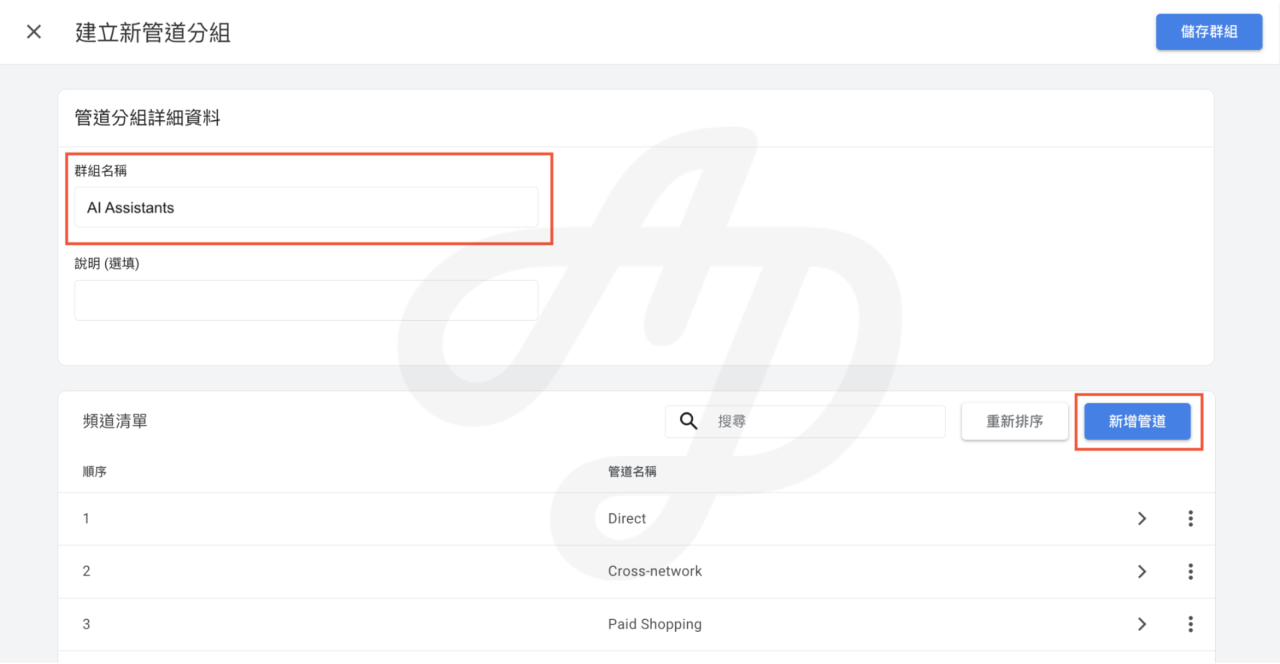
3. Enter a group name > Add new channel
For example, we set traffic from AI as “AI Assistants”.
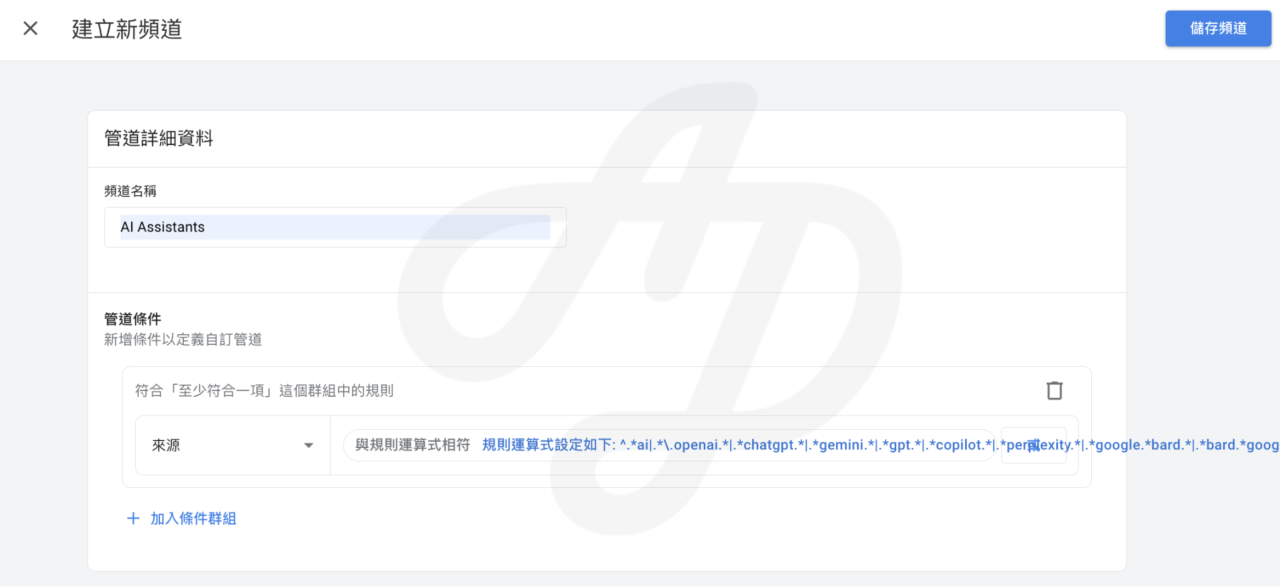
4. Enter a channel name > Set the rule
Choose Source, and matches regex. Use the following regular expression, which you can copy and paste:
^.*ai|.*.openai.*|.*chatgpt.*|.*gemini.*|.*gpt.*|.*copilot.*|.*perplexity.*|.*google.*bard.*|.*bard.*google.*|.*bard.*|.*.*gemini.*google.*$
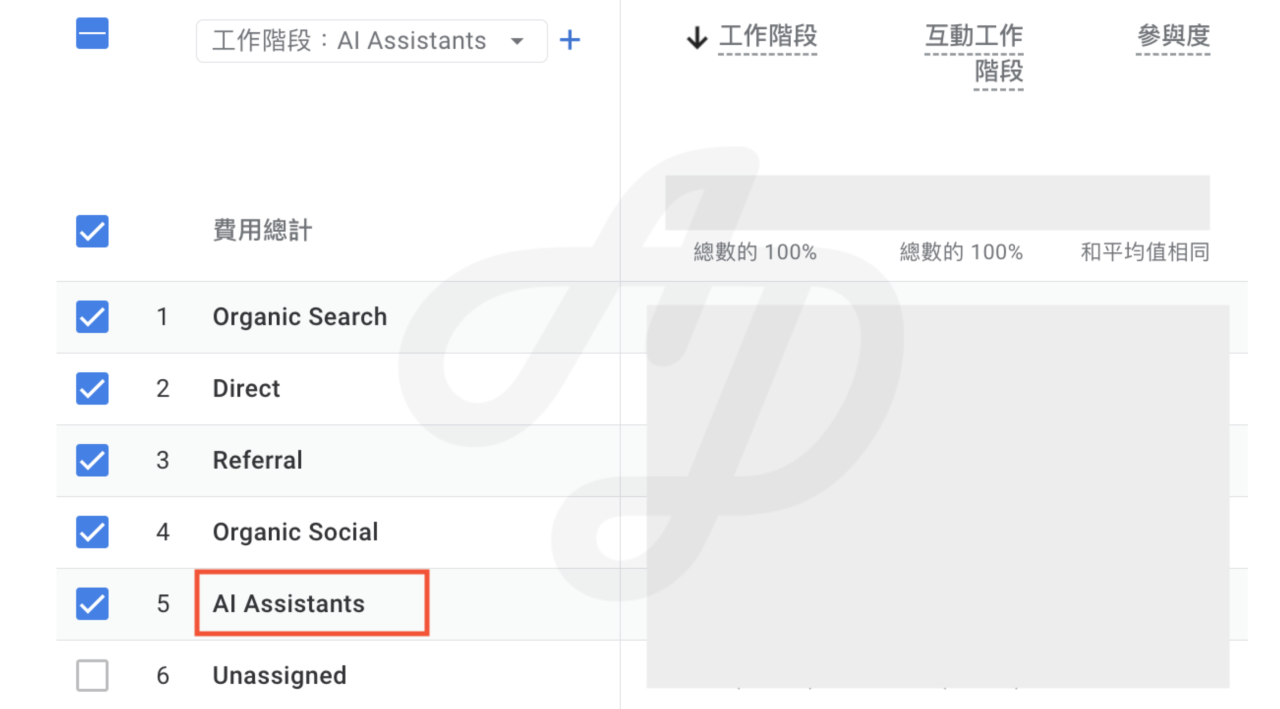
5. Reorder the channel list so that “AI Assistants” sits above “Referral” (GA4 assigns traffic to the first channel that matches, so otherwise AI referrals stay in Referral), then save and apply. You will then see AI traffic in the channel group dimension. Don’t forget to use the Traffic acquisition report to check the conversion rate of AI traffic.
Advanced use: tracking users from Google AI Overview
Beyond knowing that traffic comes from AI, a deeper insight is: which passage of my page did the AI actually cite?
When a user clicks through to a website from Google’s AI Overview or a featured snippet, the URL often ends with a #:~:text= parameter that marks the passage cited on the page. Two things to note. First, for privacy reasons browsers remove this parameter from window.location, so it has to be read from Navigation Timing (performance.getEntriesByType(“navigation”)) instead. The code below is written this way and has been tested in Chrome. Second, this parameter does not only appear with AI Overview; it can also come from featured snippets and other search features, so it cannot be treated as equivalent to AI Overview referrals. We recommend reading it together with the traffic source and landing page.
GTM setup steps
1. Click Variables on the left > New
2. Choose “Custom JavaScript” as the variable type
3. Name the variable JS – AI Overview Highlight (or a name of your choice)
4. Paste the following code
function() {
  try {
    if ((performance.getEntriesByType("navigation")[0]||{name:""}).name.indexOf("#:~:text=") !== -1) {
      var fragment = (performance.getEntriesByType("navigation")[0]||{name:""}).name.split("#:~:text=")[1];
      if (fragment.indexOf("&") !== -1) {
        fragment = fragment.split("&")[0];
      }
      return decodeURIComponent(fragment);
    } else {
      return null;
    }
  } catch (error) {
    return null;
  }
}
5. Click Tags in the left menu > New
6. Choose Google Analytics: GA4 Event
7. Enter the Measurement ID and the event name
8. Add an event parameter: ai_highlight_text = {{JS – AI Overview Highlight}}
9. For the trigger type, choose an Initialization trigger that fires on some events, and set the trigger conditions as shown in the screenshot
10. Save and publish the GTM container
11. Finally, remember to create a custom dimension in GA4, otherwise you will not see the ai_highlight_text values in your reports.
What can ai_highlight_text tell us?
- Content optimisation: which passages are cited by AI most often? These are the ones that answer users’ questions precisely.
- User intent: although Google does not provide keywords, the highlighted text lets you infer that the question the user searched for was probably closely related to that passage.
- Assessing AIO impact: you can check whether traffic carrying these parameters has longer engagement time and a higher engagement rate than ordinary organic search traffic.
Conclusion
The share of traffic from AI Overview is expected to keep rising, and the search landscape is being reshaped. Although GA4’s built-in tracking is limited for now, if you understand how traffic is classified, you can still capture the behaviour of these high-value users from your existing data and spot opportunities early.
Worried that you can’t see the full picture of AI traffic? CloudAD’s data consulting team offers GA4 diagnostics and consulting to help you optimise your marketing strategy with data insights. To turn AI traffic into a new source of growth, get in touch.