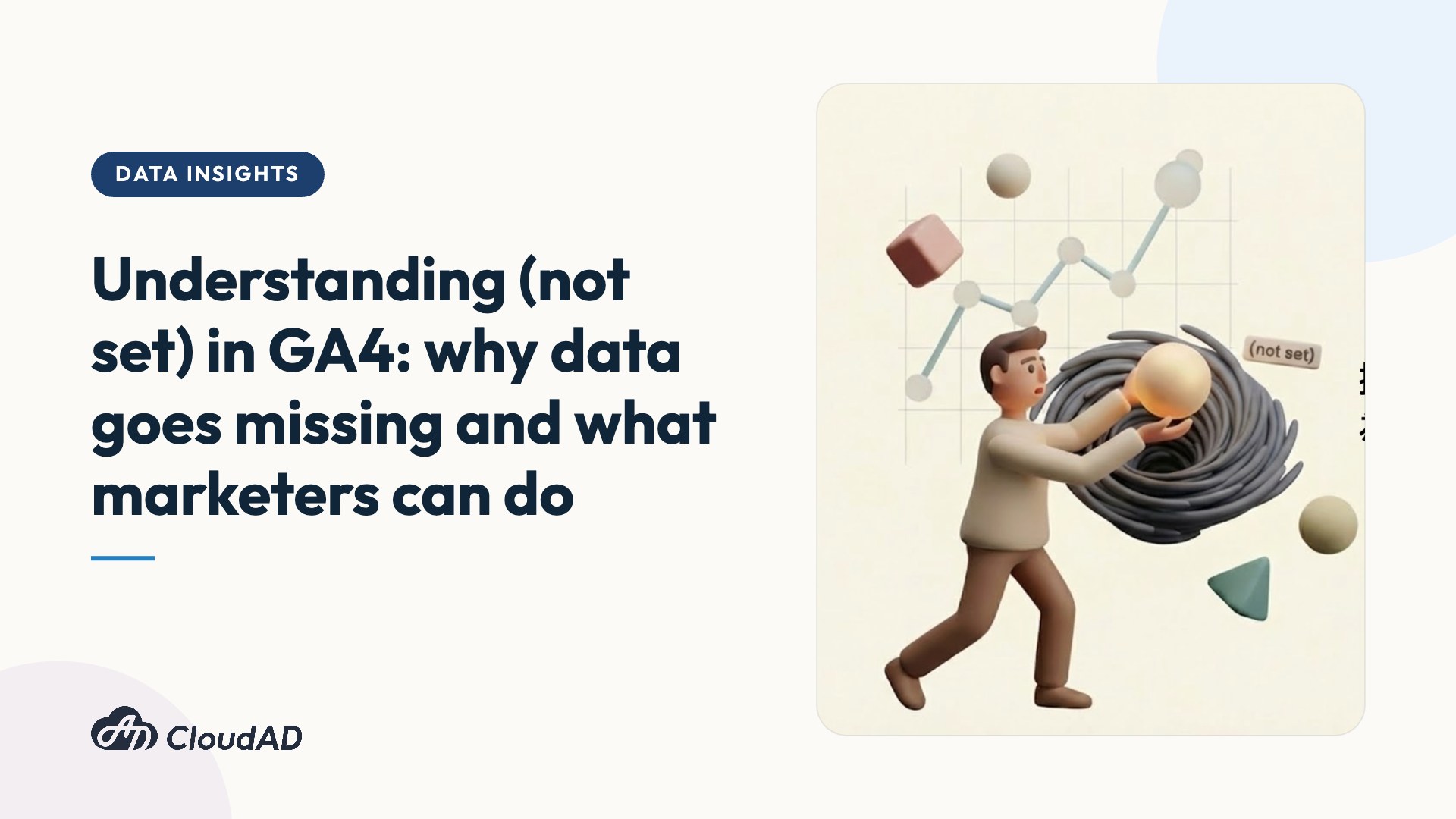
As a marketer, you have almost certainly seen this: there is traffic, there are events, there are conversions, yet the report is full of (not set), and you have no idea where to start.
Don’t worry. This does not mean your website is broken, and it is not necessarily a setup problem.
Below, we explain what (not set) really is and what you can do about it as a marketer.
What is (not set) in reports?
When GA4 has no value to fill in for a dimension, or cannot identify that information for some reason, it does not leave the field blank. It fills in (not set) instead.
Think of it as a box labelled “miscellaneous” or “uncategorised”. When the system does not know where to put the data, it goes there first.
This does not necessarily mean the data is wrong. It only means the data is incomplete.
How does (not set) affect marketing decisions?
From a marketing point of view, a high share of (not set) directly affects three things:
- Underestimating marketing performance: This unclassified traffic actually has value, but because it is labelled as an unknown source, you may wrongly conclude that some campaigns are underperforming and allocate budget incorrectly.
- Being unable to calculate return on investment (ROI): When the traffic source shows as (not set), attribution breaks. The system cannot match order revenue to a specific campaign, so marketers cannot measure the true ROI of each channel or tell which ads are really profitable.
- Less credible KPI reports: When the share of (not set) is high, reports need extra explanation. Management and the team trust the data less, and decisions start to rely on gut feeling rather than data.
Common causes of (not set)
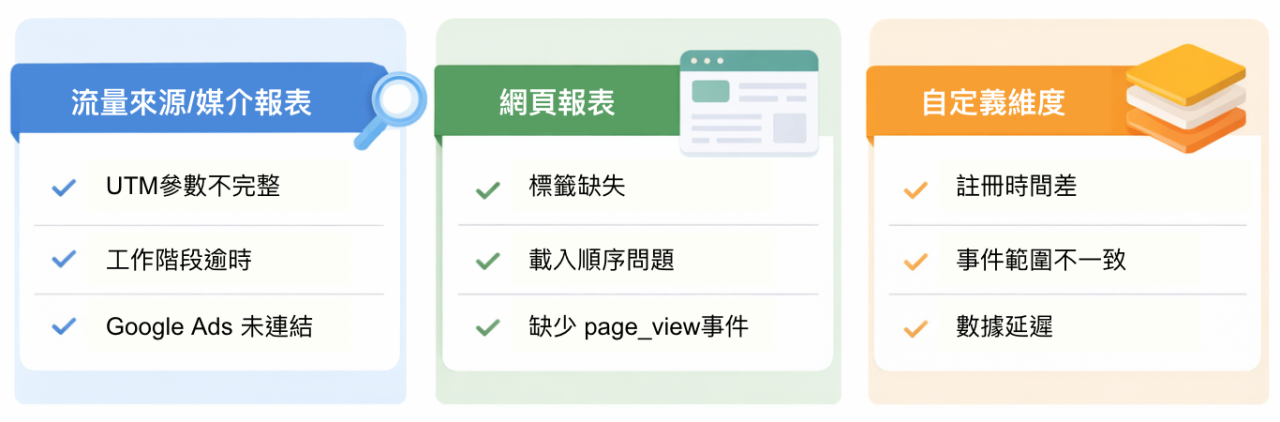
1. Traffic source / medium reports
- Incomplete UTM parameters: UTM parameters in the URL are misspelt or malformed (for example, utm_source is missing), so GA4 cannot identify the traffic source.
- Session timeout: When a user is idle for more than 30 minutes (for example, leaves a tab open while doing something else) and then comes back and interacts again (such as scrolling) without reloading the page, GA4 starts a new session. Because this new session has no session_start event, the system cannot carry over the original source information, and the source becomes (not set).
- Google Ads not linked: If you run Google Ads but have not linked the account to GA4, or forgot to turn on auto-tagging, traffic from your ads cannot pass on detailed data.
2. Page reports: page title / landing page
Page title:
- Missing tag: No <title> tag is defined in the page source code.
- Loading order: The page title has not finished loading when the GA4 tracking code fires. This is common on dynamic websites and single-page applications (SPAs).
Landing page:
- Missing page_view event: The landing page is determined by the first page_view in a session.
- Background tab restart: When a session is “revived” after a timeout, the system may only capture user_engagement without triggering page_view, so the source page information is lost.
3. Custom dimensions
- Registration timing: This is the most common cause. A custom dimension only starts collecting from the moment you “register” it in GA4. Even if you added the parameter to your code long ago, historical data from before registration will still be (not set).
- Inconsistent event scope: If a dimension is defined as event-scoped, every relevant event must carry the parameter. For example, if the parameter is sent with “add to cart” but missing from “purchase”, the purchase report will show (not set).
- Processing delay: Newly registered dimensions take 24 to 48 hours to take effect, and the data is not stable during that period.
Three steps to reduce (not set) in your reports
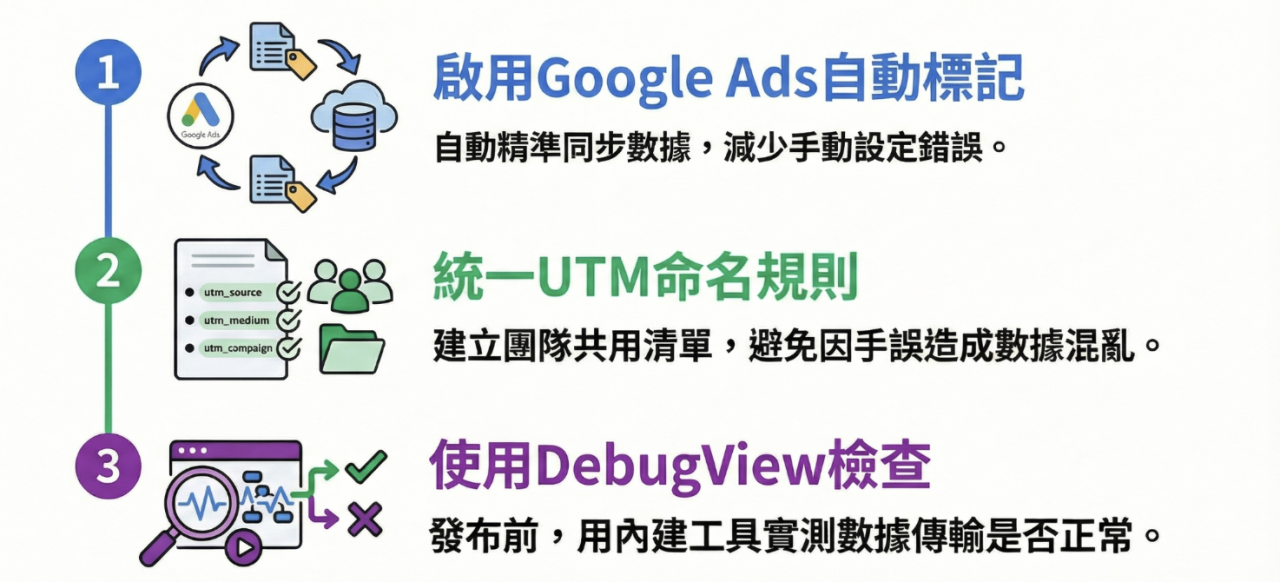
Step 1: Check the Google Ads link
Make sure your Google Ads account is linked to GA4 and, most importantly, that auto-tagging is turned on. This way, Google Ads data is passed to GA4 automatically and accurately, reducing the chance of manual setup errors.
Step 2: Create a standard UTM naming sheet
Treat UTMs as category labels and keep capitalisation consistent (facebook and Facebook are different values). We recommend one shared cloud list for the whole company. Check links against it before publishing to avoid messy data caused by typos.
Step 3: Use DebugView to check
If you find that a particular event keeps showing (not set), use GA4’s built-in DebugView. It works like a doctor’s stethoscope: you can test whether data is being sent correctly before you publish, and confirm that key parameters such as page_location or page_title are being sent along with the event.
Don’t let anonymous data eat into your results
Understanding why (not set) appears and how to fix it helps you take back control of how you read your data, so your reports reflect user behaviour more accurately instead of being obscured by vague “anonymous data”.
If you are facing any of these problems:
- You are not sure whether the current share of (not set) in your reports is reasonable
- You want to work out which issues are GA4 system limits and which can still be improved
- You have checked the settings above, but the share of (not set) is still high
Our data team can run a full GA4 health check to find the key issues and give your marketing decisions a firmer basis, so get in touch.