
Google Analytics 4 helps us collect, analyse and predict website and app data. But to pull the information we need out of so many reports and so much data efficiently, you need a few techniques to get there quickly and accurately. This post explains how to use the search box and the Insights feature to speed up your searches and work more efficiently.
Make the most of the search box to find what you need
GA4 search works in any language. Whether you type a specific term or a conversational question, GA4 offers matching suggestions. Below are three powerful ways to use search to open the door to your data.

1. Get answers about metrics and how to do things
If you want a quick answer about a value, instead of clicking through reports you can type your question straight into the search bar and get a reply. When you type a term or question, being specific about the metric, dimension and time period helps the system give you the information you need straight away.

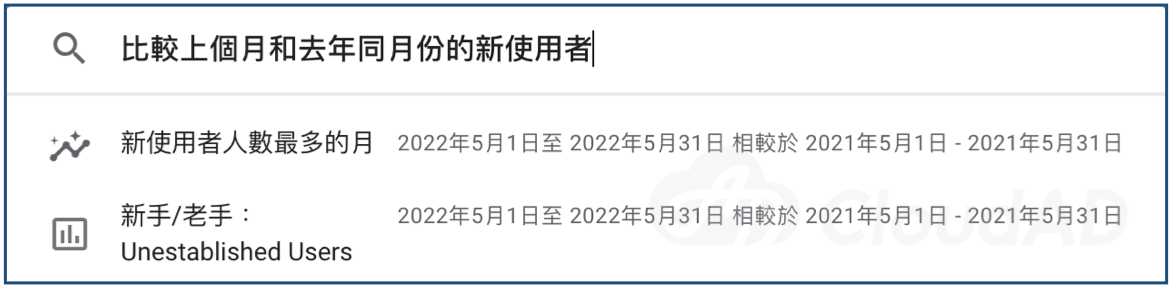
You can also compare different time periods of your choosing, for example “compare new users last month with the same month last year”, and the system returns a report based on those conditions.
If you need help with a task, just type the relevant topic, for example “add a web stream”.
When searching, we recommend starting with words such as add, set up, create, delete, edit, how to, change, remove, update or upgrade.

2. Search reports, admin pages and Insights
- Reports
Type the dimension or metric you are looking for and the system shows the reports that contain that keyword. For example, typing “conversion paths” into the search box brings up the related reports below:

- Admin pages
Search also helps you quickly find features on the Admin page. For example, typing “link ads” returns Google Ads links under Admin, helping users quickly reach the settings page for linking Google Ads and Analytics accounts.

- Insights
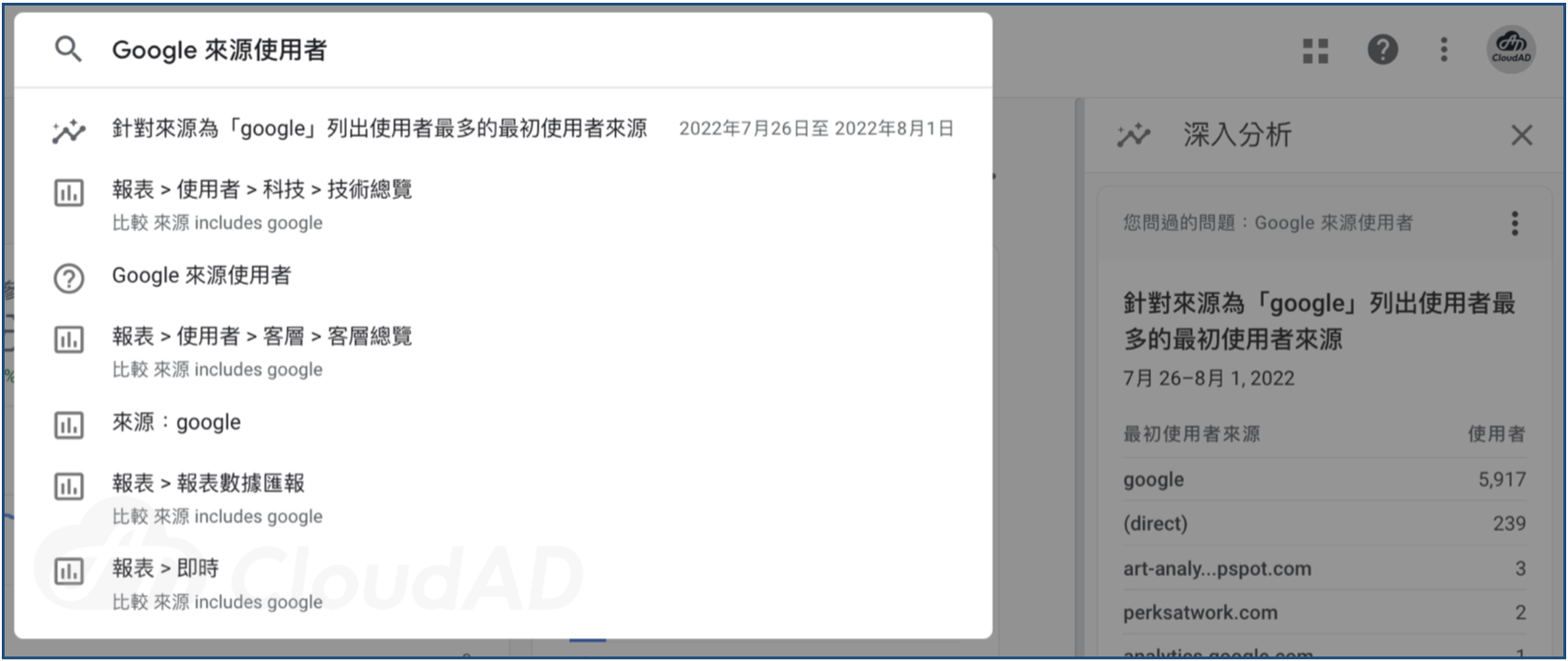
GA4 uses machine learning to provide detailed Insights that help users analyse data and take action. Insights related to your search appear in the results. For example, searching “users from Google” brings up the matching insights.
3. Search account and property settings
Type terms such as “account ID”, “property ID” or “measurement ID” to get information about your account and property.

The GA4 search box can quickly answer questions about how to do things and take you to the reports and key figures you need. Open GA4 and start using search to work more efficiently. If you need help with GA4 implementation or analysis, get in touch.